
WebサイトやLPで「性格診断」や「タイプ診断」などのテストを見かけたことはありませんか?実は、これらの診断コンテンツはJavaScriptを使えば、初心者でも簡単に自作できます。しかも、ユーザーの滞在時間を伸ばしたり、SNSでの拡散を狙えたりと、マーケティング的にも非常に効果的な施策です。
ただし、いざ作ろうとすると「どうやって質問と選択肢を紐づけるの?」「結果の分岐はどんな仕組み?」「HTMLやCSSも必要?」など、最初の一歩でつまずいてしまう方も多いのではないでしょうか。
この記事では、JavaScriptで「診断テスト」を一から作る方法を、初心者でも理解できるように順を追って丁寧に解説します。まずはHTML+JavaScriptで診断の基本構造を作り、「質問→選択肢→結果表示」という流れを理解。そのうえで、得点式・条件分岐型のロジックを組み込み、性格診断や適職診断といった実用的なコンテンツに仕上げていきます。さらに、UI改善やSNS連携など、実際のサイト運用で成果を出すための応用テクニックも紹介します。
「とりあえず動く診断テストを作りたい」人も、「コンテンツマーケティングで活用したい」人も、この1記事で設計から公開まで一通り理解できるはずです。
「診断テストを自作してみたいけど、どこから手をつければいいかわからない…」という方にこそ読んでほしい内容です。実際に動くコードを交えながら、あなたのサイトでもすぐに導入できる診断コンテンツの作り方を詳しく解説していきます。
JavaScript診断テストの基本構造と作成ステップ
JavaScript診断テストを作る際には、まず全体の構造を理解することが重要です。このセクションでは、HTML+JavaScriptで作る診断テストの基本的な構成から、実際に動作するテンプレートまでを順を追って解説します。

HTML+JavaScriptで作る診断テストの全体構成とは
JavaScript診断テストは、大きく分けて3つのエリアで構成されます。この構造を理解することが、診断テスト作成の第一歩です。
診断テストの3つの構成要素
- 質問表示エリア: 現在の質問文と質問番号を表示
- 選択肢ボタンエリア: ユーザーが選択できるボタン群
- 結果表示エリア: 診断結果とメッセージを表示
<!DOCTYPE html>
<html lang="ja">
<head>
    <meta charset="UTF-8">
    <meta name="viewport" content="width=device-width, initial-scale=1.0">
    <title>診断テスト基本構造</title>
    <style>
        /* 基本的なスタイリング */
        .container {
            max-width: 600px;
            margin: 50px auto;
            padding: 20px;
            font-family: sans-serif;
        }

        /* 質問表示エリア */
        #question-area {
            margin-bottom: 30px;
        }

        #question-text {
            font-size: 20px;
            font-weight: bold;
            margin-bottom: 20px;
        }

        /* 選択肢ボタンエリア */
        #choices-area button {
            display: block;
            width: 100%;
            padding: 15px;
            margin-bottom: 10px;
            font-size: 16px;
            cursor: pointer;
            border: 2px solid #4CAF50;
            background-color: white;
            border-radius: 5px;
            transition: background-color 0.3s;
        }

        #choices-area button:hover {
            background-color: #4CAF50;
            color: white;
        }

        /* 結果表示エリア */
        #result-area {
            display: none; /* 最初は非表示 */
            text-align: center;
            padding: 30px;
            background-color: #f0f0f0;
            border-radius: 10px;
        }

        #result-text {
            font-size: 24px;
            font-weight: bold;
            margin-bottom: 15px;
        }
    </style>
</head>
<body>
    <div class="container">
        <!-- 1. 質問表示エリア -->
        <div id="question-area">
            <p id="question-number"></p>
            <p id="question-text"></p>
        </div>

        <!-- 2. 選択肢ボタンエリア -->
        <div id="choices-area"></div>

        <!-- 3. 結果表示エリア -->
        <div id="result-area">
            <p id="result-text"></p>
            <p id="result-description"></p>
        </div>
    </div>
</body>
</html>
JavaScriptの役割と機能
JavaScript側では、以下の3つの主要な機能を実装します:
- 質問データの定義: 配列とオブジェクトで質問・選択肢・点数を管理
- イベントリスナー: ユーザーの選択(クリック)を検知して処理
- 画面切り替え: 質問表示→次の質問→結果表示へと画面を遷移
// 質問データの定義(配列とオブジェクト構造)
const questions = [
    {
        question: "朝起きたときの気分は?",
        choices: [
            { text: "スッキリ目覚める", score: 3 },
            { text: "普通", score: 2 },
            { text: "なかなか起きられない", score: 1 }
        ]
    },
    {
        question: "休日の過ごし方は?",
        choices: [
            { text: "アクティブに外出", score: 3 },
            { text: "家で趣味を楽しむ", score: 2 },
            { text: "ゆっくり休む", score: 1 }
        ]
    }
];

// 現在の質問番号とスコアを管理する変数
let currentQuestion = 0;
let totalScore = 0;
「質問→選択肢→結果表示」の流れをコードで理解する
診断テストの処理の流れは、関数を使って段階的に実装します。各関数が特定の役割を持ち、順番に呼び出されることで診断テストが進行します。
処理フローと関数の役割
// ========================================
// 1. 質問を表示する関数
// ========================================
function displayQuestion() {
    // 現在の質問データを取得
    const question = questions[currentQuestion];

    // 質問番号を表示
    document.getElementById('question-number').textContent =
        `質問 ${currentQuestion + 1} / ${questions.length}`;

    // 質問文を表示
    document.getElementById('question-text').textContent = question.question;

    // 選択肢エリアをクリア
    const choicesArea = document.getElementById('choices-area');
    choicesArea.innerHTML = '';

    // 各選択肢をボタンとして生成
    question.choices.forEach((choice, index) => {
        const button = document.createElement('button');
        button.textContent = choice.text;

        // ボタンがクリックされたときの処理を設定
        button.addEventListener('click', () => handleAnswer(choice.score));

        choicesArea.appendChild(button);
    });
}

// ========================================
// 2. 回答を処理する関数
// ========================================
function handleAnswer(score) {
    // 選択された選択肢の点数を加算
    totalScore += score;

    // 次の質問へ進む
    currentQuestion++;

    // まだ質問が残っているか確認
    if (currentQuestion < questions.length) {
        // 次の質問を表示
        displayQuestion();
    } else {
        // すべての質問が終了したら結果を表示
        showResult();
    }
}

// ========================================
// 3. 結果を表示する関数
// ========================================
function showResult() {
    // 質問エリアと選択肢エリアを非表示
    document.getElementById('question-area').style.display = 'none';
    document.getElementById('choices-area').style.display = 'none';

    // 結果エリアを表示
    const resultArea = document.getElementById('result-area');
    resultArea.style.display = 'block';

    // スコアに応じて結果を判定
    let resultText, resultDescription;

    if (totalScore >= 5) {
        resultText = "アクティブタイプ";
        resultDescription = "エネルギッシュで行動的なあなた!";
    } else if (totalScore >= 3) {
        resultText = "バランスタイプ";
        resultDescription = "バランスの取れた生活を送っています。";
    } else {
        resultText = "リラックスタイプ";
        resultDescription = "ゆったりとした時間を大切にするタイプです。";
    }

    // 結果を画面に表示
    document.getElementById('result-text').textContent = resultText;
    document.getElementById('result-description').textContent = resultDescription;
}

// ========================================
// 4. 診断テストを開始する関数
// ========================================
function startTest() {
    // 初期化
    currentQuestion = 0;
    totalScore = 0;

    // 最初の質問を表示
    displayQuestion();
}

// ページ読み込み時に診断テストを開始
window.addEventListener('DOMContentLoaded', startTest);
実際の表示
See the Pen js-diagnostic-test-01 by watashi-xyz (@watashi-xyz) on CodePen.
処理フローの図解
[ページ読み込み]
    ↓
startTest() ← 初期化処理
    ↓
displayQuestion() ← 質問1を表示
    ↓
[ユーザーがボタンをクリック]
    ↓
handleAnswer(score) ← スコア加算、質問番号を進める
    ↓
質問が残っている?
    YES → displayQuestion() (次の質問へ)
    NO  → showResult() (結果表示)
初心者でも安心!コピペで使える診断テストのテンプレート
ここまでの解説を統合した、すぐに動作する完全なテンプレートを提供します。このコードをHTMLファイルとして保存し、ブラウザで開くだけで診断テストが動作します。
<!DOCTYPE html>
<html lang="ja">
<head>
    <meta charset="UTF-8">
    <meta name="viewport" content="width=device-width, initial-scale=1.0">
    <title>JavaScript診断テスト - 完全版テンプレート</title>
    <style>
        * {
            margin: 0;
            padding: 0;
            box-sizing: border-box;
        }

        body {
            font-family: 'Helvetica Neue', Arial, sans-serif;
            background: linear-gradient(135deg, #667eea 0%, #764ba2 100%);
            min-height: 100vh;
            display: flex;
            justify-content: center;
            align-items: center;
            padding: 20px;
        }

        .container {
            background: white;
            max-width: 600px;
            width: 100%;
            padding: 40px;
            border-radius: 15px;
            box-shadow: 0 10px 40px rgba(0,0,0,0.2);
        }

        h1 {
            text-align: center;
            color: #667eea;
            margin-bottom: 30px;
        }

        #question-area {
            margin-bottom: 30px;
        }

        #question-number {
            color: #888;
            font-size: 14px;
            margin-bottom: 10px;
        }

        #question-text {
            font-size: 22px;
            font-weight: bold;
            color: #333;
            line-height: 1.5;
        }

        #choices-area {
            display: flex;
            flex-direction: column;
            gap: 12px;
        }

        #choices-area button {
            padding: 18px 24px;
            font-size: 16px;
            border: 2px solid #667eea;
            background: white;
            color: #667eea;
            border-radius: 8px;
            cursor: pointer;
            transition: all 0.3s ease;
            text-align: left;
        }

        #choices-area button:hover {
            background: #667eea;
            color: white;
            transform: translateX(5px);
        }

        #result-area {
            display: none;
            text-align: center;
            animation: fadeIn 0.5s ease;
        }

        @keyframes fadeIn {
            from { opacity: 0; transform: translateY(20px); }
            to { opacity: 1; transform: translateY(0); }
        }

        #result-text {
            font-size: 32px;
            font-weight: bold;
            color: #667eea;
            margin-bottom: 20px;
        }

        #result-description {
            font-size: 18px;
            color: #555;
            line-height: 1.6;
            margin-bottom: 30px;
        }

        #restart-button {
            padding: 15px 40px;
            font-size: 16px;
            background: #667eea;
            color: white;
            border: none;
            border-radius: 8px;
            cursor: pointer;
            transition: background 0.3s;
        }

        #restart-button:hover {
            background: #5568d3;
        }
    </style>
</head>
<body>
    <div class="container">
        <h1>あなたのライフスタイル診断</h1>

        <!-- 質問表示エリア -->
        <div id="question-area">
            <p id="question-number"></p>
            <p id="question-text"></p>
        </div>

        <!-- 選択肢ボタンエリア -->
        <div id="choices-area"></div>

        <!-- 結果表示エリア -->
        <div id="result-area">
            <p id="result-text"></p>
            <p id="result-description"></p>
            <button id="restart-button">もう一度診断する</button>
        </div>
    </div>

    <script>
        // ========================================
        // 質問データの定義
        // ========================================
        const questions = [
            {
                question: "朝起きたときの気分は?",
                choices: [
                    { text: "スッキリ目覚めて活動的", score: 3 },
                    { text: "まあまあ普通", score: 2 },
                    { text: "なかなか起きられない", score: 1 }
                ]
            },
            {
                question: "休日の過ごし方は?",
                choices: [
                    { text: "外出してアクティブに活動", score: 3 },
                    { text: "家で趣味を楽しむ", score: 2 },
                    { text: "ゆっくり休息を取る", score: 1 }
                ]
            },
            {
                question: "友人との約束について",
                choices: [
                    { text: "積極的に計画を立てる", score: 3 },
                    { text: "誘われたら参加する", score: 2 },
                    { text: "一人の時間を優先したい", score: 1 }
                ]
            }
        ];

        // グローバル変数
        let currentQuestion = 0;  // 現在の質問番号
        let totalScore = 0;       // 合計スコア

        // ========================================
        // 質問を表示する関数
        // ========================================
        function displayQuestion() {
            const question = questions[currentQuestion];

            // 質問番号の表示
            document.getElementById('question-number').textContent =
                `質問 ${currentQuestion + 1} / ${questions.length}`;

            // 質問文の表示
            document.getElementById('question-text').textContent = question.question;

            // 選択肢エリアをクリア
            const choicesArea = document.getElementById('choices-area');
            choicesArea.innerHTML = '';

            // 選択肢ボタンを生成
            question.choices.forEach((choice) => {
                const button = document.createElement('button');
                button.textContent = choice.text;
                button.addEventListener('click', () => handleAnswer(choice.score));
                choicesArea.appendChild(button);
            });
        }

        // ========================================
        // 回答処理関数
        // ========================================
        function handleAnswer(score) {
            // スコアを加算
            totalScore += score;

            // 次の質問へ
            currentQuestion++;

            // 質問が残っているか判定
            if (currentQuestion < questions.length) {
                displayQuestion();
            } else {
                showResult();
            }
        }

        // ========================================
        // 結果表示関数
        // ========================================
        function showResult() {
            // 質問エリアを非表示
            document.getElementById('question-area').style.display = 'none';
            document.getElementById('choices-area').style.display = 'none';

            // 結果エリアを表示
            const resultArea = document.getElementById('result-area');
            resultArea.style.display = 'block';

            // スコアに応じた結果判定
            let resultText, resultDescription;

            if (totalScore >= 8) {
                resultText = "🌟 アクティブタイプ";
                resultDescription = "エネルギッシュで行動的なあなた!新しいことに挑戦するのが好きで、常に前向きです。";
            } else if (totalScore >= 5) {
                resultText = "⚖️ バランスタイプ";
                resultDescription = "活動と休息のバランスが取れているあなた。状況に応じて柔軟に対応できます。";
            } else {
                resultText = "🌙 リラックスタイプ";
                resultDescription = "ゆったりとした時間を大切にするあなた。自分のペースで物事を進めるのが得意です。";
            }

            // 結果を表示
            document.getElementById('result-text').textContent = resultText;
            document.getElementById('result-description').textContent = resultDescription;
        }

        // ========================================
        // 診断テスト開始関数
        // ========================================
        function startTest() {
            // 初期化
            currentQuestion = 0;
            totalScore = 0;

            // エリアの表示状態をリセット
            document.getElementById('question-area').style.display = 'block';
            document.getElementById('choices-area').style.display = 'block';
            document.getElementById('result-area').style.display = 'none';

            // 最初の質問を表示
            displayQuestion();
        }

        // ========================================
        // イベントリスナー設定
        // ========================================
        // ページ読み込み時に診断開始
        window.addEventListener('DOMContentLoaded', startTest);

        // リスタートボタンのイベント設定
        document.getElementById('restart-button').addEventListener('click', startTest);
    </script>
</body>
</html>
実際の表示
See the Pen js-diagnostic-test-02 by watashi-xyz (@watashi-xyz) on CodePen.
このテンプレートは、JavaScript診断テストの基本構造をすべて含んでいます。質問データを変更するだけで、様々な診断コンテンツに応用できます。次のセクションでは、より高度な得点式ロジックや条件分岐の実装方法を解説していきます。
得点式・条件分岐型診断テストのロジック実装
前セクションでは基本的な診断テストの構造を学びました。このセクションでは、より実践的な得点式ロジックと複雑な条件分岐の実装方法を、具体的なコード例とともに解説します。
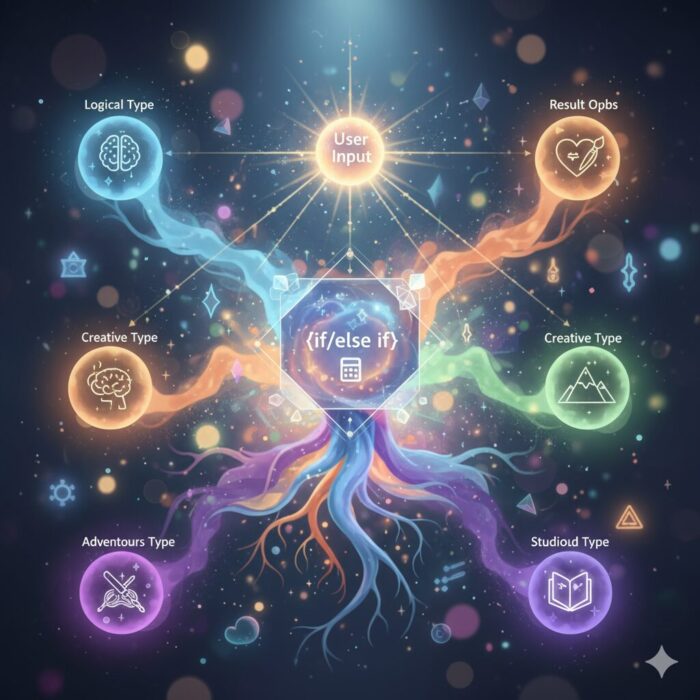
得点式診断テストのロジックを作る(スコア加算と結果分岐)
得点式診断テストは、各回答に点数を設定し、合計スコアに応じて結果を分岐させる最も基本的なロジックです。スコア管理と条件分岐の2つの要素で構成されます。
スコア加算の基本ロジック
// ========================================
// スコア管理の基本構造
// ========================================

// グローバル変数でスコアを管理
let totalScore = 0;

// 質問データ(各選択肢にスコアを設定)
const questions = [
    {
        question: "ストレスを感じたときの対処法は?",
        choices: [
            { text: "運動して発散する", score: 5 },
            { text: "友人と話す", score: 3 },
            { text: "一人で静かに過ごす", score: 1 }
        ]
    },
    {
        question: "新しいことに挑戦するとき",
        choices: [
            { text: "積極的に飛び込む", score: 5 },
            { text: "慎重に計画を立てる", score: 3 },
            { text: "様子を見てから決める", score: 1 }
        ]
    },
    {
        question: "目標達成のために",
        choices: [
            { text: "徹底的に努力する", score: 5 },
            { text: "バランスを取りながら進める", score: 3 },
            { text: "マイペースに取り組む", score: 1 }
        ]
    }
];

// 回答時にスコアを加算
function handleAnswer(score) {
    // 選択された選択肢のスコアを累積
    totalScore += score;

    console.log(`現在のスコア: ${totalScore}`); // デバッグ用

    // 次の処理へ
    currentQuestion++;

    if (currentQuestion < questions.length) {
        displayQuestion();
    } else {
        showResult();
    }
}
if/else文による結果分岐
最もシンプルな条件分岐はif/else if文を使った方法です。スコアの範囲ごとに結果を振り分けます。
// ========================================
// if/else文による結果判定
// ========================================
function showResult() {
    let resultType, resultTitle, resultDescription;

    // スコアの範囲で結果を分岐
    if (totalScore >= 13) {
        // 高得点(13-15点)
        resultType = "type-a";
        resultTitle = "アクションタイプ";
        resultDescription = "非常に行動的で、困難にも果敢に立ち向かうタイプです。リーダーシップがあり、周囲を引っ張る力があります。";
    } else if (totalScore >= 9) {
        // 中高得点(9-12点)
        resultType = "type-b";
        resultTitle = "バランスタイプ";
        resultDescription = "行動力と慎重さのバランスが取れています。状況に応じて柔軟に対応できる適応力が強みです。";
    } else if (totalScore >= 5) {
        // 中低得点(5-8点)
        resultType = "type-c";
        resultTitle = "思慮深いタイプ";
        resultDescription = "じっくり考えてから行動する慎重派。計画性があり、リスクを避けながら確実に進めます。";
    } else {
        // 低得点(3-4点)
        resultType = "type-d";
        resultTitle = "マイペースタイプ";
        resultDescription = "自分のペースを大切にするタイプ。周囲に流されず、独自の価値観で生きています。";
    }

    // 結果を表示
    displayResultScreen(resultType, resultTitle, resultDescription);
}
switch文による結果分岐
より明確な区分がある場合はswitch文も有効です。特に結果タイプが明確に分かれている場合に適しています。
// ========================================
// switch文による結果判定
// ========================================
function showResult() {
    // スコアを区分に変換
    let scoreRange;

    if (totalScore >= 13) {
        scoreRange = "high";
    } else if (totalScore >= 9) {
        scoreRange = "medium-high";
    } else if (totalScore >= 5) {
        scoreRange = "medium-low";
    } else {
        scoreRange = "low";
    }

    // switch文で結果を分岐
    let resultTitle, resultDescription, resultAdvice;

    switch(scoreRange) {
        case "high":
            resultTitle = "🔥 超アクティブタイプ";
            resultDescription = "エネルギーに満ち溢れ、常に前進し続けるあなた。";
            resultAdvice = "時には休息も大切に。燃え尽きないようバランスを意識しましょう。";
            break;

        case "medium-high":
            resultTitle = "⚡ アクティブタイプ";
            resultDescription = "行動力がありながらも、計画性も兼ね備えています。";
            resultAdvice = "この調子で目標に向かって進んでいきましょう!";
            break;

        case "medium-low":
            resultTitle = "🌿 穏やかタイプ";
            resultDescription = "落ち着いていて、慎重に物事を進めるタイプ。";
            resultAdvice = "時には思い切った行動も成長のチャンスです。";
            break;

        case "low":
            resultTitle = "🌙 リラックスタイプ";
            resultDescription = "自分のペースを大切にする、独立心の強いタイプ。";
            resultAdvice = "あなたのペースは素晴らしい。自信を持って進んでください。";
            break;

        default:
            resultTitle = "診断結果";
            resultDescription = "結果を取得できませんでした。";
            resultAdvice = "";
    }

    // 結果表示
    document.getElementById('result-title').textContent = resultTitle;
    document.getElementById('result-description').textContent = resultDescription;
    document.getElementById('result-advice').textContent = resultAdvice;
}
完全動作するコード例
<!DOCTYPE html>
<html lang="ja">
<head>
    <meta charset="UTF-8">
    <title>得点式診断テスト - スコア加算方式</title>
    <style>
        body {
            font-family: Arial, sans-serif;
            max-width: 700px;
            margin: 50px auto;
            padding: 20px;
            background: #f5f5f5;
        }
        .quiz-container {
            background: white;
            padding: 30px;
            border-radius: 10px;
            box-shadow: 0 2px 10px rgba(0,0,0,0.1);
        }
        h2 { color: #333; }
        .question {
            font-size: 20px;
            margin-bottom: 20px;
            font-weight: bold;
        }
        .choice-btn {
            display: block;
            width: 100%;
            padding: 15px;
            margin: 10px 0;
            font-size: 16px;
            border: 2px solid #4CAF50;
            background: white;
            cursor: pointer;
            border-radius: 5px;
            transition: 0.3s;
        }
        .choice-btn:hover {
            background: #4CAF50;
            color: white;
        }
        .result {
            display: none;
            text-align: center;
        }
        .result h2 {
            font-size: 28px;
            color: #4CAF50;
            margin-bottom: 15px;
        }
        .score-display {
            font-size: 18px;
            color: #666;
            margin: 20px 0;
        }
    </style>
</head>
<body>
    <div class="quiz-container">
        <div id="quiz-area">
            <p class="question" id="question"></p>
            <div id="choices"></div>
        </div>

        <div class="result" id="result">
            <h2 id="result-title"></h2>
            <p class="score-display">あなたのスコア: <span id="score"></span>点</p>
            <p id="result-desc"></p>
        </div>
    </div>

    <script>
        const questions = [
            {
                question: "Q1. ストレスを感じたときの対処法は?",
                choices: [
                    { text: "運動して発散する", score: 5 },
                    { text: "友人と話す", score: 3 },
                    { text: "一人で静かに過ごす", score: 1 }
                ]
            },
            {
                question: "Q2. 新しいことに挑戦するとき",
                choices: [
                    { text: "積極的に飛び込む", score: 5 },
                    { text: "慎重に計画を立てる", score: 3 },
                    { text: "様子を見てから決める", score: 1 }
                ]
            },
            {
                question: "Q3. 目標達成のために",
                choices: [
                    { text: "徹底的に努力する", score: 5 },
                    { text: "バランスを取りながら進める", score: 3 },
                    { text: "マイペースに取り組む", score: 1 }
                ]
            }
        ];

        let currentQuestion = 0;
        let totalScore = 0;

        function displayQuestion() {
            const q = questions[currentQuestion];
            document.getElementById('question').textContent = q.question;

            const choicesDiv = document.getElementById('choices');
            choicesDiv.innerHTML = '';

            q.choices.forEach(choice => {
                const btn = document.createElement('button');
                btn.className = 'choice-btn';
                btn.textContent = choice.text;
                btn.onclick = () => handleAnswer(choice.score);
                choicesDiv.appendChild(btn);
            });
        }

        function handleAnswer(score) {
            totalScore += score;
            currentQuestion++;

            if (currentQuestion < questions.length) {
                displayQuestion();
            } else {
                showResult();
            }
        }

        function showResult() {
            document.getElementById('quiz-area').style.display = 'none';
            document.getElementById('result').style.display = 'block';

            let title, desc;

            if (totalScore >= 13) {
                title = "🔥 超アクティブタイプ";
                desc = "エネルギーに満ち溢れ、常に前進し続けるあなた!";
            } else if (totalScore >= 9) {
                title = "⚡ アクティブタイプ";
                desc = "行動力がありながらも、計画性も兼ね備えています。";
            } else if (totalScore >= 5) {
                title = "🌿 穏やかタイプ";
                desc = "落ち着いていて、慎重に物事を進めるタイプ。";
            } else {
                title = "🌙 リラックスタイプ";
                desc = "自分のペースを大切にする、独立心の強いタイプ。";
            }

            document.getElementById('result-title').textContent = title;
            document.getElementById('score').textContent = totalScore;
            document.getElementById('result-desc').textContent = desc;
        }

        displayQuestion();
    </script>
</body>
</html>
実際の表示
See the Pen js-diagnostic-test-03 by watashi-xyz (@watashi-xyz) on CodePen.
性格診断・適職診断に使える複雑な分岐ロジックの作り方
単純な得点加算では表現できない、多次元的な診断を実装する方法を解説します。性格診断や適職診断では、複数のカテゴリごとにスコアを管理する必要があります。
カテゴリ別スコア管理のデータ構造
// ========================================
// 複数カテゴリのスコア管理
// ========================================

// カテゴリごとのスコアを管理するオブジェクト
const scores = {
    logical: 0,      // 論理的思考
    creative: 0,     // 創造性
    social: 0,       // 社交性
    practical: 0     // 実践力
};

// 質問データ(各選択肢が複数カテゴリに影響)
const personalityQuestions = [
    {
        question: "問題解決の際、あなたが重視するのは?",
        choices: [
            {
                text: "データと論理に基づいて判断する",
                scores: { logical: 3, practical: 1 }
            },
            {
                text: "直感とひらめきを大切にする",
                scores: { creative: 3, logical: -1 }
            },
            {
                text: "周囲の意見を聞いて決める",
                scores: { social: 3, logical: 1 }
            }
        ]
    },
    {
        question: "仕事で最もやりがいを感じるのは?",
        choices: [
            {
                text: "複雑な課題を分析し解決すること",
                scores: { logical: 3, practical: 2 }
            },
            {
                text: "新しいアイデアを形にすること",
                scores: { creative: 3, practical: 1 }
            },
            {
                text: "チームで協力して成果を出すこと",
                scores: { social: 3, practical: 2 }
            }
        ]
    },
    {
        question: "休日の過ごし方で最も魅力的なのは?",
        choices: [
            {
                text: "読書や勉強で知識を深める",
                scores: { logical: 2, creative: 1 }
            },
            {
                text: "趣味の創作活動に没頭する",
                scores: { creative: 3, practical: 1 }
            },
            {
                text: "友人と外出して楽しむ",
                scores: { social: 3 }
            },
            {
                text: "家事や整理整頓をする",
                scores: { practical: 3 }
            }
        ]
    }
];

// 回答処理(複数カテゴリに加算)
function handlePersonalityAnswer(choiceScores) {
    // 各カテゴリにスコアを加算
    for (let category in choiceScores) {
        scores[category] += choiceScores[category];
    }

    console.log("現在のスコア:", scores); // デバッグ用

    // 次の処理へ
    currentQuestion++;

    if (currentQuestion < personalityQuestions.length) {
        displayQuestion();
    } else {
        showPersonalityResult();
    }
}
最高スコアのカテゴリで結果を判定
// ========================================
// 最も高いスコアのカテゴリを判定
// ========================================
function showPersonalityResult() {
    // 最高スコアのカテゴリを見つける
    let maxCategory = null;
    let maxScore = -Infinity;

    for (let category in scores) {
        if (scores[category] > maxScore) {
            maxScore = scores[category];
            maxCategory = category;
        }
    }

    // カテゴリに応じた結果を定義
    const results = {
        logical: {
            type: "ロジカルタイプ",
            description: "論理的思考力に優れ、データ分析や問題解決が得意なタイプです。",
            jobs: "データアナリスト、エンジニア、研究職",
            strength: "客観的な判断力、分析能力"
        },
        creative: {
            type: "クリエイティブタイプ",
            description: "独創性があり、新しいアイデアを生み出すことが得意なタイプです。",
            jobs: "デザイナー、クリエイター、企画職",
            strength: "発想力、芸術的センス"
        },
        social: {
            type: "ソーシャルタイプ",
            description: "コミュニケーション能力が高く、人との関わりを大切にするタイプです。",
            jobs: "営業、カウンセラー、教育職",
            strength: "共感力、協調性"
        },
        practical: {
            type: "プラクティカルタイプ",
            description: "実行力があり、具体的な成果を出すことが得意なタイプです。",
            jobs: "プロジェクトマネージャー、実務担当者",
            strength: "実践力、効率性"
        }
    };

    const result = results[maxCategory];

    // 結果を表示
    document.getElementById('result-type').textContent = result.type;
    document.getElementById('result-desc').textContent = result.description;
    document.getElementById('result-jobs').textContent = `適職: ${result.jobs}`;
    document.getElementById('result-strength').textContent = `強み: ${result.strength}`;

    // スコア詳細も表示
    displayScoreChart(scores);
}
スコアの可視化(チャート表示)
// ========================================
// スコアチャートの表示
// ========================================
function displayScoreChart(scores) {
    const chartContainer = document.getElementById('score-chart');
    chartContainer.innerHTML = '';

    // 最高スコアを基準にパーセンテージを計算
    const maxScore = Math.max(...Object.values(scores));

    const categoryNames = {
        logical: "論理性",
        creative: "創造性",
        social: "社交性",
        practical: "実践力"
    };

    for (let category in scores) {
        const score = scores[category];
        const percentage = maxScore > 0 ? (score / maxScore) * 100 : 0;

        // バー要素を作成
        const barContainer = document.createElement('div');
        barContainer.className = 'score-bar-container';

        const label = document.createElement('span');
        label.className = 'score-label';
        label.textContent = categoryNames[category];

        const barWrapper = document.createElement('div');
        barWrapper.className = 'score-bar-wrapper';

        const bar = document.createElement('div');
        bar.className = 'score-bar';
        bar.style.width = percentage + '%';

        const scoreText = document.createElement('span');
        scoreText.className = 'score-value';
        scoreText.textContent = score;

        barWrapper.appendChild(bar);
        barContainer.appendChild(label);
        barContainer.appendChild(barWrapper);
        barContainer.appendChild(scoreText);

        chartContainer.appendChild(barContainer);
    }
}
完全動作する性格診断コード
<!DOCTYPE html>
<html lang="ja">
<head>
    <meta charset="UTF-8">
    <title>性格診断 - 複雑な分岐ロジック</title>
    <style>
        body {
            font-family: 'Segoe UI', Tahoma, Geneva, Verdana, sans-serif;
            background: linear-gradient(135deg, #667eea 0%, #764ba2 100%);
            min-height: 100vh;
            padding: 20px;
        }
        .container {
            max-width: 800px;
            margin: 0 auto;
            background: white;
            padding: 40px;
            border-radius: 15px;
            box-shadow: 0 10px 30px rgba(0,0,0,0.3);
        }
        h1 { text-align: center; color: #667eea; }
        .question {
            font-size: 22px;
            font-weight: bold;
            margin-bottom: 25px;
            color: #333;
        }
        .choice-btn {
            display: block;
            width: 100%;
            padding: 18px;
            margin: 12px 0;
            font-size: 16px;
            border: 2px solid #667eea;
            background: white;
            color: #333;
            cursor: pointer;
            border-radius: 8px;
            transition: 0.3s;
            text-align: left;
        }
        .choice-btn:hover {
            background: #667eea;
            color: white;
            transform: translateX(5px);
        }
        .result {
            display: none;
        }
        .result h2 {
            color: #667eea;
            font-size: 32px;
            margin-bottom: 20px;
        }
        .result-section {
            margin: 20px 0;
            padding: 15px;
            background: #f8f9fa;
            border-radius: 8px;
        }
        .score-bar-container {
            display: flex;
            align-items: center;
            margin: 15px 0;
        }
        .score-label {
            width: 100px;
            font-weight: bold;
            color: #555;
        }
        .score-bar-wrapper {
            flex: 1;
            height: 30px;
            background: #e0e0e0;
            border-radius: 15px;
            overflow: hidden;
            margin: 0 15px;
        }
        .score-bar {
            height: 100%;
            background: linear-gradient(90deg, #667eea, #764ba2);
            transition: width 1s ease;
        }
        .score-value {
            font-weight: bold;
            color: #667eea;
            min-width: 30px;
        }
    </style>
</head>
<body>
    <div class="container">
        <h1>あなたの性格タイプ診断</h1>

        <div id="quiz-area">
            <p class="question" id="question"></p>
            <div id="choices"></div>
        </div>

        <div class="result" id="result">
            <h2 id="result-type"></h2>
            <div class="result-section">
                <p id="result-desc"></p>
                <p id="result-jobs"></p>
                <p id="result-strength"></p>
            </div>
            <h3>あなたの特性グラフ</h3>
            <div id="score-chart"></div>
        </div>
    </div>

    <script>
        const scores = {
            logical: 0,
            creative: 0,
            social: 0,
            practical: 0
        };

        const questions = [
            {
                question: "問題解決の際、あなたが重視するのは?",
                choices: [
                    { text: "データと論理に基づいて判断する", scores: { logical: 3, practical: 1 } },
                    { text: "直感とひらめきを大切にする", scores: { creative: 3 } },
                    { text: "周囲の意見を聞いて決める", scores: { social: 3, logical: 1 } }
                ]
            },
            {
                question: "仕事で最もやりがいを感じるのは?",
                choices: [
                    { text: "複雑な課題を分析し解決すること", scores: { logical: 3, practical: 2 } },
                    { text: "新しいアイデアを形にすること", scores: { creative: 3, practical: 1 } },
                    { text: "チームで協力して成果を出すこと", scores: { social: 3, practical: 2 } }
                ]
            },
            {
                question: "休日の過ごし方で最も魅力的なのは?",
                choices: [
                    { text: "読書や勉強で知識を深める", scores: { logical: 2, creative: 1 } },
                    { text: "趣味の創作活動に没頭する", scores: { creative: 3, practical: 1 } },
                    { text: "友人と外出して楽しむ", scores: { social: 3 } },
                    { text: "家事や整理整頓をする", scores: { practical: 3 } }
                ]
            }
        ];

        let currentQuestion = 0;

        function displayQuestion() {
            const q = questions[currentQuestion];
            document.getElementById('question').textContent =
                `Q${currentQuestion + 1}. ${q.question}`;

            const choicesDiv = document.getElementById('choices');
            choicesDiv.innerHTML = '';

            q.choices.forEach(choice => {
                const btn = document.createElement('button');
                btn.className = 'choice-btn';
                btn.textContent = choice.text;
                btn.onclick = () => handleAnswer(choice.scores);
                choicesDiv.appendChild(btn);
            });
        }

        function handleAnswer(choiceScores) {
            for (let cat in choiceScores) {
                scores[cat] += choiceScores[cat];
            }

            currentQuestion++;

            if (currentQuestion < questions.length) {
                displayQuestion();
            } else {
                showResult();
            }
        }

        function showResult() {
            document.getElementById('quiz-area').style.display = 'none';
            document.getElementById('result').style.display = 'block';

            let maxCat = null;
            let maxScore = -Infinity;

            for (let cat in scores) {
                if (scores[cat] > maxScore) {
                    maxScore = scores[cat];
                    maxCat = cat;
                }
            }

            const results = {
                logical: {
                    type: "🧠 ロジカルタイプ",
                    desc: "論理的思考力に優れ、データ分析や問題解決が得意なタイプです。",
                    jobs: "適職: データアナリスト、エンジニア、研究職",
                    strength: "強み: 客観的な判断力、分析能力"
                },
                creative: {
                    type: "🎨 クリエイティブタイプ",
                    desc: "独創性があり、新しいアイデアを生み出すことが得意なタイプです。",
                    jobs: "適職: デザイナー、クリエイター、企画職",
                    strength: "強み: 発想力、芸術的センス"
                },
                social: {
                    type: "👥 ソーシャルタイプ",
                    desc: "コミュニケーション能力が高く、人との関わりを大切にするタイプです。",
                    jobs: "適職: 営業、カウンセラー、教育職",
                    strength: "強み: 共感力、協調性"
                },
                practical: {
                    type: "⚙️ プラクティカルタイプ",
                    desc: "実行力があり、具体的な成果を出すことが得意なタイプです。",
                    jobs: "適職: プロジェクトマネージャー、実務担当者",
                    strength: "強み: 実践力、効率性"
                }
            };

            const result = results[maxCat];
            document.getElementById('result-type').textContent = result.type;
            document.getElementById('result-desc').textContent = result.desc;
            document.getElementById('result-jobs').textContent = result.jobs;
            document.getElementById('result-strength').textContent = result.strength;

            displayChart();
        }

        function displayChart() {
            const chart = document.getElementById('score-chart');
            chart.innerHTML = '';

            const maxScore = Math.max(...Object.values(scores));
            const names = {
                logical: "論理性",
                creative: "創造性",
                social: "社交性",
                practical: "実践力"
            };

            for (let cat in scores) {
                const percent = maxScore > 0 ? (scores[cat] / maxScore) * 100 : 0;

                const container = document.createElement('div');
                container.className = 'score-bar-container';

                const label = document.createElement('span');
                label.className = 'score-label';
                label.textContent = names[cat];

                const wrapper = document.createElement('div');
                wrapper.className = 'score-bar-wrapper';

                const bar = document.createElement('div');
                bar.className = 'score-bar';
                bar.style.width = percent + '%';

                const value = document.createElement('span');
                value.className = 'score-value';
                value.textContent = scores[cat];

                wrapper.appendChild(bar);
                container.appendChild(label);
                container.appendChild(wrapper);
                container.appendChild(value);

                chart.appendChild(container);
            }
        }

        displayQuestion();
    </script>
</body>
</html>
実際の表示
See the Pen js-diagnostic-test-04 by watashi-xyz (@watashi-xyz) on CodePen.
得点式クイズの作り方とスコア表示の実装例【JavaScript+HTML】
クイズ形式の診断テストでは、正誤判定と正解率の表示が重要です。ここでは、回答と正解を比較し、正解数をカウントする実装方法を解説します。
正誤判定のデータ構造
// ========================================
// クイズデータの構造(正解を含む)
// ========================================
const quizQuestions = [
    {
        question: "JavaScriptで変数を宣言するキーワードは?",
        choices: ["var", "variable", "dim", "declare"],
        correctAnswer: 0  // 正解のインデックス(0番目のchoicesが正解)
    },
    {
        question: "配列の要素数を取得するプロパティは?",
        choices: ["size", "length", "count", "total"],
        correctAnswer: 1  // 1番目が正解
    },
    {
        question: "JavaScriptのデータ型でないものは?",
        choices: ["string", "number", "character", "boolean"],
        correctAnswer: 2  // 2番目が正解
    },
    {
        question: "DOMで要素を取得するメソッドは?",
        choices: ["getElement", "getElementById", "findElement", "selectElement"],
        correctAnswer: 1
    }
];

// 正解数をカウントする変数
let correctCount = 0;
let currentQuestionIndex = 0;
正誤判定ロジックの実装
// ========================================
// 回答の正誤を判定する関数
// ========================================
function checkAnswer(selectedIndex) {
    const currentQ = quizQuestions[currentQuestionIndex];
    const isCorrect = selectedIndex === currentQ.correctAnswer;

    // 正解の場合、カウントを増やす
    if (isCorrect) {
        correctCount++;
        showFeedback(true, "正解です!");
    } else {
        const correctAnswerText = currentQ.choices[currentQ.correctAnswer];
        showFeedback(false, `不正解です。正解は「${correctAnswerText}」です。`);
    }

    // フィードバック表示後、次の質問へ
    setTimeout(() => {
        currentQuestionIndex++;

        if (currentQuestionIndex < quizQuestions.length) {
            displayQuizQuestion();
        } else {
            showQuizResult();
        }
    }, 2000); // 2秒後に次へ
}

// ========================================
// フィードバック表示関数
// ========================================
function showFeedback(isCorrect, message) {
    const feedbackDiv = document.getElementById('feedback');
    feedbackDiv.textContent = message;
    feedbackDiv.className = isCorrect ? 'feedback correct' : 'feedback incorrect';
    feedbackDiv.style.display = 'block';
}
正解率の計算と表示
// ========================================
// クイズ結果を表示する関数
// ========================================
function showQuizResult() {
    // 質問エリアを非表示
    document.getElementById('quiz-area').style.display = 'none';

    // 結果エリアを表示
    const resultArea = document.getElementById('result-area');
    resultArea.style.display = 'block';

    // 正解率を計算(パーセンテージ)
    const totalQuestions = quizQuestions.length;
    const percentage = Math.round((correctCount / totalQuestions) * 100);

    // 正解率に応じた評価メッセージ
    let grade, message, emoji;

    if (percentage === 100) {
        grade = "S";
        message = "完璧です!全問正解おめでとうございます!";
        emoji = "🏆";
    } else if (percentage >= 80) {
        grade = "A";
        message = "素晴らしい!よく理解していますね。";
        emoji = "🌟";
    } else if (percentage >= 60) {
        grade = "B";
        message = "良い成績です!もう少しで完璧ですね。";
        emoji = "👍";
    } else if (percentage >= 40) {
        grade = "C";
        message = "まずまずです。復習してみましょう。";
        emoji = "📚";
    } else {
        grade = "D";
        message = "もう一度チャレンジしてみましょう!";
        emoji = "💪";
    }

    // 結果を表示
    document.getElementById('result-emoji').textContent = emoji;
    document.getElementById('result-grade').textContent = `グレード: ${grade}`;
    document.getElementById('result-score').textContent =
        `正解数: ${correctCount} / ${totalQuestions}`;
    document.getElementById('result-percentage').textContent =
        `正解率: ${percentage}%`;
    document.getElementById('result-message').textContent = message;

    // 正解率を視覚的に表示(サークルプログレス)
    displayCircleProgress(percentage);
}

// ========================================
// サークルプログレスの表示
// ========================================
function displayCircleProgress(percentage) {
    const circle = document.getElementById('progress-circle');
    const circumference = 2 * Math.PI * 90; // 半径90の円周
    const offset = circumference - (percentage / 100) * circumference;

    // CSSカスタムプロパティで円の進捗を設定
    circle.style.strokeDasharray = circumference;
    circle.style.strokeDashoffset = offset;
}
完全動作するクイズコード
<!DOCTYPE html>
<html lang="ja">
<head>
    <meta charset="UTF-8">
    <title>JavaScript クイズ - 正誤判定と正解率表示</title>
    <style>
        * {
            margin: 0;
            padding: 0;
            box-sizing: border-box;
        }

        body {
            font-family: 'Arial', sans-serif;
            background: linear-gradient(135deg, #1e3c72 0%, #2a5298 100%);
            min-height: 100vh;
            display: flex;
            justify-content: center;
            align-items: center;
            padding: 20px;
        }

        .container {
            background: white;
            max-width: 700px;
            width: 100%;
            padding: 40px;
            border-radius: 20px;
            box-shadow: 0 15px 50px rgba(0,0,0,0.3);
        }

        h1 {
            text-align: center;
            color: #1e3c72;
            margin-bottom: 30px;
            font-size: 28px;
        }

        .question-header {
            display: flex;
            justify-content: space-between;
            margin-bottom: 20px;
            color: #666;
        }

        .question {
            font-size: 20px;
            font-weight: bold;
            color: #333;
            margin-bottom: 25px;
            line-height: 1.5;
        }

        .choice-btn {
            display: block;
            width: 100%;
            padding: 18px 20px;
            margin: 12px 0;
            font-size: 16px;
            border: 2px solid #1e3c72;
            background: white;
            color: #333;
            cursor: pointer;
            border-radius: 10px;
            transition: all 0.3s;
            text-align: left;
            position: relative;
        }

        .choice-btn:hover {
            background: #1e3c72;
            color: white;
            transform: translateX(5px);
        }

        .choice-btn::before {
            content: attr(data-index);
            display: inline-block;
            width: 30px;
            height: 30px;
            line-height: 30px;
            text-align: center;
            background: #1e3c72;
            color: white;
            border-radius: 50%;
            margin-right: 15px;
            font-weight: bold;
        }

        .choice-btn:hover::before {
            background: white;
            color: #1e3c72;
        }

        .feedback {
            display: none;
            padding: 15px;
            margin: 20px 0;
            border-radius: 8px;
            font-weight: bold;
            text-align: center;
            animation: slideIn 0.3s ease;
        }

        @keyframes slideIn {
            from { opacity: 0; transform: translateY(-10px); }
            to { opacity: 1; transform: translateY(0); }
        }

        .feedback.correct {
            background: #4CAF50;
            color: white;
        }

        .feedback.incorrect {
            background: #f44336;
            color: white;
        }

        #result-area {
            display: none;
            text-align: center;
            animation: fadeIn 0.5s ease;
        }

        @keyframes fadeIn {
            from { opacity: 0; }
            to { opacity: 1; }
        }

        .result-emoji {
            font-size: 80px;
            margin-bottom: 20px;
        }

        .result-grade {
            font-size: 48px;
            font-weight: bold;
            color: #1e3c72;
            margin-bottom: 10px;
        }

        .result-stats {
            font-size: 20px;
            color: #555;
            margin: 10px 0;
        }

        .result-message {
            font-size: 18px;
            color: #666;
            margin: 20px 0;
            line-height: 1.6;
        }

        .progress-container {
            position: relative;
            width: 200px;
            height: 200px;
            margin: 30px auto;
        }

        .progress-circle {
            transform: rotate(-90deg);
            transition: stroke-dashoffset 1s ease;
        }

        .progress-text {
            position: absolute;
            top: 50%;
            left: 50%;
            transform: translate(-50%, -50%);
            font-size: 36px;
            font-weight: bold;
            color: #1e3c72;
        }

        .retry-btn {
            padding: 15px 40px;
            font-size: 18px;
            background: #1e3c72;
            color: white;
            border: none;
            border-radius: 10px;
            cursor: pointer;
            margin-top: 20px;
            transition: background 0.3s;
        }

        .retry-btn:hover {
            background: #2a5298;
        }
    </style>
</head>
<body>
    <div class="container">
        <h1>JavaScript基礎クイズ</h1>

        <div id="quiz-area">
            <div class="question-header">
                <span id="question-number"></span>
                <span id="score-display">正解数: <span id="current-score">0</span></span>
            </div>
            <p class="question" id="question"></p>
            <div id="choices"></div>
            <div class="feedback" id="feedback"></div>
        </div>

        <div id="result-area">
            <div class="result-emoji" id="result-emoji"></div>
            <div class="result-grade" id="result-grade"></div>

            <div class="progress-container">
                <svg width="200" height="200">
                    <circle cx="100" cy="100" r="90" fill="none" stroke="#e0e0e0" stroke-width="15"/>
                    <circle id="progress-circle" class="progress-circle" cx="100" cy="100" r="90"
                            fill="none" stroke="#1e3c72" stroke-width="15"
                            stroke-dasharray="565.48" stroke-dashoffset="565.48"/>
                </svg>
                <div class="progress-text" id="result-percentage"></div>
            </div>

            <div class="result-stats" id="result-score"></div>
            <p class="result-message" id="result-message"></p>

            <button class="retry-btn" onclick="restartQuiz()">もう一度挑戦する</button>
        </div>
    </div>

    <script>
        const quizQuestions = [
            {
                question: "JavaScriptで変数を宣言するキーワードは?",
                choices: ["var", "variable", "dim", "declare"],
                correctAnswer: 0
            },
            {
                question: "配列の要素数を取得するプロパティは?",
                choices: ["size", "length", "count", "total"],
                correctAnswer: 1
            },
            {
                question: "JavaScriptのデータ型でないものは?",
                choices: ["string", "number", "character", "boolean"],
                correctAnswer: 2
            },
            {
                question: "DOMで要素を取得するメソッドは?",
                choices: ["getElement", "getElementById", "findElement", "selectElement"],
                correctAnswer: 1
            },
            {
                question: "イベントリスナーを追加するメソッドは?",
                choices: ["addEvent", "addEventListener", "attachEvent", "onEvent"],
                correctAnswer: 1
            }
        ];

        let currentQuestionIndex = 0;
        let correctCount = 0;

        function displayQuizQuestion() {
            const q = quizQuestions[currentQuestionIndex];

            document.getElementById('question-number').textContent =
                `問題 ${currentQuestionIndex + 1}/${quizQuestions.length}`;
            document.getElementById('question').textContent = q.question;
            document.getElementById('current-score').textContent = correctCount;

            const choicesDiv = document.getElementById('choices');
            choicesDiv.innerHTML = '';

            document.getElementById('feedback').style.display = 'none';

            q.choices.forEach((choice, index) => {
                const btn = document.createElement('button');
                btn.className = 'choice-btn';
                btn.textContent = choice;
                btn.setAttribute('data-index', String.fromCharCode(65 + index)); // A, B, C, D
                btn.onclick = () => checkAnswer(index);
                choicesDiv.appendChild(btn);
            });
        }

        function checkAnswer(selectedIndex) {
            const q = quizQuestions[currentQuestionIndex];
            const isCorrect = selectedIndex === q.correctAnswer;

            if (isCorrect) {
                correctCount++;
                document.getElementById('current-score').textContent = correctCount;
                showFeedback(true, "✓ 正解です!");
            } else {
                const correctText = q.choices[q.correctAnswer];
                showFeedback(false, `✗ 不正解です。正解は「${correctText}」です。`);
            }

            // ボタンを無効化
            const buttons = document.querySelectorAll('.choice-btn');
            buttons.forEach(btn => btn.disabled = true);

            setTimeout(() => {
                currentQuestionIndex++;

                if (currentQuestionIndex < quizQuestions.length) {
                    displayQuizQuestion();
                } else {
                    showQuizResult();
                }
            }, 2000);
        }

        function showFeedback(isCorrect, message) {
            const feedback = document.getElementById('feedback');
            feedback.textContent = message;
            feedback.className = isCorrect ? 'feedback correct' : 'feedback incorrect';
            feedback.style.display = 'block';
        }

        function showQuizResult() {
            document.getElementById('quiz-area').style.display = 'none';
            document.getElementById('result-area').style.display = 'block';

            const total = quizQuestions.length;
            const percentage = Math.round((correctCount / total) * 100);

            let grade, message, emoji;

            if (percentage === 100) {
                grade = "S"; message = "完璧です!全問正解おめでとうございます!"; emoji = "🏆";
            } else if (percentage >= 80) {
                grade = "A"; message = "素晴らしい!よく理解していますね。"; emoji = "🌟";
            } else if (percentage >= 60) {
                grade = "B"; message = "良い成績です!もう少しで完璧ですね。"; emoji = "👍";
            } else if (percentage >= 40) {
                grade = "C"; message = "まずまずです。復習してみましょう。"; emoji = "📚";
            } else {
                grade = "D"; message = "もう一度チャレンジしてみましょう!"; emoji = "💪";
            }

            document.getElementById('result-emoji').textContent = emoji;
            document.getElementById('result-grade').textContent = `グレード: ${grade}`;
            document.getElementById('result-score').textContent =
                `正解数: ${correctCount} / ${total}`;
            document.getElementById('result-percentage').textContent = `${percentage}%`;
            document.getElementById('result-message').textContent = message;

            // プログレスサークルアニメーション
            const circle = document.getElementById('progress-circle');
            const circumference = 2 * Math.PI * 90;
            const offset = circumference - (percentage / 100) * circumference;

            setTimeout(() => {
                circle.style.strokeDashoffset = offset;
            }, 100);
        }

        function restartQuiz() {
            currentQuestionIndex = 0;
            correctCount = 0;

            document.getElementById('quiz-area').style.display = 'block';
            document.getElementById('result-area').style.display = 'none';

            displayQuizQuestion();
        }

        displayQuizQuestion();
    </script>
</body>
</html>
実際の表示
See the Pen js-diagnostic-test-05 by watashi-xyz (@watashi-xyz) on CodePen.
このセクションでは、JavaScript診断テストで最も重要な得点式ロジックと複雑な分岐処理の実装方法を解説しました。単純なスコア加算から、複数カテゴリを管理する性格診断、そして正誤判定を行うクイズ形式まで、実際のプロジェクトで使える実装パターンを網羅しています。
次のセクションでは、これらの診断テストをさらに魅力的にするUI設計や外部連携、そしてSEO対策について解説していきます。
実践で役立つ診断コンテンツの応用と公開方法
診断テストの基本的な実装ができたら、次はユーザー体験の向上と公開・運用を考えましょう。このセクションでは、離脱率を下げるUI設計、SNS連携、そしてSEO対策まで、実践的な応用テクニックを解説します。
進捗バーやアニメーションで離脱率を下げるUI設計
診断テストでは、ユーザーが途中で離脱しないよう、進捗状況を視覚的に示すことが重要です。プログレスバーの実装方法を詳しく解説します。
プログレスバーの基本実装
<!DOCTYPE html>
<html lang="ja">
<head>
    <meta charset="UTF-8">
    <title>進捗バー付き診断テスト</title>
    <style>
        .progress-container {
            width: 100%;
            height: 8px;
            background-color: #e0e0e0;
            border-radius: 10px;
            margin-bottom: 30px;
            overflow: hidden;
            position: relative;
        }

        .progress-bar {
            height: 100%;
            background: linear-gradient(90deg, #4CAF50, #45a049);
            border-radius: 10px;
            transition: width 0.4s ease;
            position: relative;
        }

        /* プログレスバーの光沢効果 */
        .progress-bar::after {
            content: '';
            position: absolute;
            top: 0;
            left: 0;
            right: 0;
            bottom: 0;
            background: linear-gradient(
                90deg,
                transparent,
                rgba(255, 255, 255, 0.3),
                transparent
            );
            animation: shimmer 2s infinite;
        }

        @keyframes shimmer {
            0% { transform: translateX(-100%); }
            100% { transform: translateX(100%); }
        }

        .progress-text {
            text-align: center;
            color: #666;
            font-size: 14px;
            margin-bottom: 10px;
        }

        /* 質問カードのアニメーション */
        .question-card {
            animation: slideIn 0.5s ease;
        }

        @keyframes slideIn {
            from {
                opacity: 0;
                transform: translateX(30px);
            }
            to {
                opacity: 1;
                transform: translateX(0);
            }
        }
    </style>
</head>
<body>
    <div class="container">
        <!-- 進捗表示 -->
        <div class="progress-text">
            <span id="progress-text">質問 1 / 5</span>
        </div>
        <div class="progress-container">
            <div class="progress-bar" id="progress-bar" style="width: 20%;"></div>
        </div>

        <!-- 質問エリア -->
        <div class="question-card" id="question-card">
            <!-- 質問内容 -->
        </div>
    </div>
</body>
</html>
JavaScriptによる進捗バー更新
// ========================================
// 進捗バーを更新する関数
// ========================================
function updateProgressBar() {
    const totalQuestions = questions.length;
    const currentProgress = currentQuestion + 1; // 現在の質問番号(1から開始)

    // パーセンテージを計算
    const percentage = (currentProgress / totalQuestions) * 100;

    // プログレスバーの幅を更新
    const progressBar = document.getElementById('progress-bar');
    progressBar.style.width = percentage + '%';

    // テキスト表示を更新
    const progressText = document.getElementById('progress-text');
    progressText.textContent = `質問 ${currentProgress} / ${totalQuestions}`;
}

// ========================================
// 質問表示時に進捗バーも更新
// ========================================
function displayQuestion() {
    const question = questions[currentQuestion];

    // 進捗バーを更新
    updateProgressBar();

    // 質問カードにアニメーションを追加
    const questionCard = document.getElementById('question-card');
    questionCard.classList.remove('question-card');
    void questionCard.offsetWidth; // リフロー強制(アニメーション再実行のため)
    questionCard.classList.add('question-card');

    // 質問文を表示
    document.getElementById('question-text').textContent = question.question;

    // 選択肢を表示
    const choicesArea = document.getElementById('choices-area');
    choicesArea.innerHTML = '';

    question.choices.forEach((choice, index) => {
        const button = document.createElement('button');
        button.className = 'choice-btn';
        button.textContent = choice.text;

        // アニメーション遅延(選択肢を順番に表示)
        button.style.animationDelay = `${index * 0.1}s`;

        button.addEventListener('click', () => handleAnswer(choice.score));
        choicesArea.appendChild(button);
    });
}
ステップインジケーター(点表示)の実装
// ========================================
// ステップインジケーターの実装
// ========================================
function createStepIndicator() {
    const stepContainer = document.getElementById('step-indicator');
    stepContainer.innerHTML = '';

    questions.forEach((_, index) => {
        const step = document.createElement('div');
        step.className = 'step';

        // 現在の質問より前なら完了状態
        if (index < currentQuestion) {
            step.classList.add('completed');
        }
        // 現在の質問なら現在状態
        else if (index === currentQuestion) {
            step.classList.add('current');
        }

        stepContainer.appendChild(step);
    });
}
/* ステップインジケーターのスタイル */
.step-indicator {
    display: flex;
    justify-content: center;
    gap: 10px;
    margin-bottom: 30px;
}

.step {
    width: 12px;
    height: 12px;
    border-radius: 50%;
    background-color: #e0e0e0;
    transition: all 0.3s ease;
}

.step.current {
    background-color: #4CAF50;
    transform: scale(1.3);
    box-shadow: 0 0 10px rgba(76, 175, 80, 0.5);
}

.step.completed {
    background-color: #4CAF50;
}
完全動作するコード例(進捗バー+アニメーション)
<!DOCTYPE html>
<html lang="ja">
<head>
    <meta charset="UTF-8">
    <title>進捗バー・アニメーション付き診断テスト</title>
    <style>
        * {
            margin: 0;
            padding: 0;
            box-sizing: border-box;
        }

        body {
            font-family: 'Segoe UI', sans-serif;
            background: linear-gradient(135deg, #667eea 0%, #764ba2 100%);
            min-height: 100vh;
            display: flex;
            justify-content: center;
            align-items: center;
            padding: 20px;
        }

        .container {
            background: white;
            max-width: 700px;
            width: 100%;
            padding: 40px;
            border-radius: 20px;
            box-shadow: 0 20px 60px rgba(0,0,0,0.3);
        }

        h1 {
            text-align: center;
            color: #667eea;
            margin-bottom: 30px;
        }

        /* 進捗バー */
        .progress-section {
            margin-bottom: 40px;
        }

        .progress-text {
            text-align: center;
            color: #666;
            font-size: 14px;
            margin-bottom: 10px;
            font-weight: 500;
        }

        .progress-container {
            width: 100%;
            height: 10px;
            background-color: #e8e8e8;
            border-radius: 10px;
            overflow: hidden;
            position: relative;
            box-shadow: inset 0 2px 4px rgba(0,0,0,0.1);
        }

        .progress-bar {
            height: 100%;
            background: linear-gradient(90deg, #667eea, #764ba2);
            border-radius: 10px;
            transition: width 0.5s cubic-bezier(0.4, 0, 0.2, 1);
            position: relative;
        }

        .progress-bar::after {
            content: '';
            position: absolute;
            top: 0;
            left: 0;
            right: 0;
            bottom: 0;
            background: linear-gradient(
                90deg,
                transparent,
                rgba(255, 255, 255, 0.4),
                transparent
            );
            animation: shimmer 2s infinite;
        }

        @keyframes shimmer {
            0% { transform: translateX(-100%); }
            100% { transform: translateX(100%); }
        }

        /* ステップインジケーター */
        .step-indicator {
            display: flex;
            justify-content: center;
            gap: 12px;
            margin-top: 15px;
        }

        .step {
            width: 14px;
            height: 14px;
            border-radius: 50%;
            background-color: #e0e0e0;
            transition: all 0.4s ease;
        }

        .step.current {
            background-color: #667eea;
            transform: scale(1.4);
            box-shadow: 0 0 15px rgba(102, 126, 234, 0.6);
        }

        .step.completed {
            background-color: #4CAF50;
        }

        /* 質問カード */
        .question-card {
            animation: slideIn 0.6s cubic-bezier(0.4, 0, 0.2, 1);
        }

        @keyframes slideIn {
            from {
                opacity: 0;
                transform: translateX(50px);
            }
            to {
                opacity: 1;
                transform: translateX(0);
            }
        }

        .question-text {
            font-size: 22px;
            font-weight: 600;
            color: #333;
            margin-bottom: 30px;
            line-height: 1.6;
        }

        /* 選択肢ボタン */
        .choices-area {
            display: flex;
            flex-direction: column;
            gap: 15px;
        }

        .choice-btn {
            padding: 20px;
            font-size: 16px;
            border: 2px solid #667eea;
            background: white;
            color: #333;
            cursor: pointer;
            border-radius: 12px;
            transition: all 0.3s ease;
            text-align: left;
            animation: fadeInUp 0.5s ease;
            animation-fill-mode: both;
        }

        @keyframes fadeInUp {
            from {
                opacity: 0;
                transform: translateY(20px);
            }
            to {
                opacity: 1;
                transform: translateY(0);
            }
        }

        .choice-btn:nth-child(1) { animation-delay: 0.1s; }
        .choice-btn:nth-child(2) { animation-delay: 0.2s; }
        .choice-btn:nth-child(3) { animation-delay: 0.3s; }
        .choice-btn:nth-child(4) { animation-delay: 0.4s; }

        .choice-btn:hover {
            background: #667eea;
            color: white;
            transform: translateX(10px);
            box-shadow: 0 5px 20px rgba(102, 126, 234, 0.3);
        }

        /* 結果エリア */
        #result-area {
            display: none;
            text-align: center;
            animation: zoomIn 0.6s ease;
        }

        @keyframes zoomIn {
            from {
                opacity: 0;
                transform: scale(0.8);
            }
            to {
                opacity: 1;
                transform: scale(1);
            }
        }

        .result-title {
            font-size: 36px;
            font-weight: bold;
            color: #667eea;
            margin-bottom: 20px;
        }

        .result-desc {
            font-size: 18px;
            color: #555;
            line-height: 1.8;
        }
    </style>
</head>
<body>
    <div class="container">
        <h1>ライフスタイル診断テスト</h1>

        <!-- 進捗セクション -->
        <div class="progress-section">
            <div class="progress-text" id="progress-text">質問 1 / 5</div>
            <div class="progress-container">
                <div class="progress-bar" id="progress-bar"></div>
            </div>
            <div class="step-indicator" id="step-indicator"></div>
        </div>

        <!-- 質問エリア -->
        <div id="quiz-area">
            <div class="question-card" id="question-card">
                <p class="question-text" id="question-text"></p>
                <div class="choices-area" id="choices-area"></div>
            </div>
        </div>

        <!-- 結果エリア -->
        <div id="result-area">
            <h2 class="result-title" id="result-title"></h2>
            <p class="result-desc" id="result-desc"></p>
        </div>
    </div>

    <script>
        const questions = [
            {
                question: "朝起きたときの気分は?",
                choices: [
                    { text: "スッキリ目覚めて活動的", score: 3 },
                    { text: "まあまあ普通", score: 2 },
                    { text: "なかなか起きられない", score: 1 }
                ]
            },
            {
                question: "休日の過ごし方は?",
                choices: [
                    { text: "外出してアクティブに活動", score: 3 },
                    { text: "家で趣味を楽しむ", score: 2 },
                    { text: "ゆっくり休息を取る", score: 1 }
                ]
            },
            {
                question: "新しいことへの挑戦について",
                choices: [
                    { text: "積極的に挑戦する", score: 3 },
                    { text: "興味があれば挑戦", score: 2 },
                    { text: "慎重に様子を見る", score: 1 }
                ]
            },
            {
                question: "ストレス解消法は?",
                choices: [
                    { text: "運動や外出で発散", score: 3 },
                    { text: "趣味に没頭する", score: 2 },
                    { text: "静かに休む", score: 1 }
                ]
            },
            {
                question: "友人との関係について",
                choices: [
                    { text: "多くの友人と交流", score: 3 },
                    { text: "親しい友人と適度に", score: 2 },
                    { text: "少数の友人と深く", score: 1 }
                ]
            }
        ];

        let currentQuestion = 0;
        let totalScore = 0;

        function updateProgressBar() {
            const progress = ((currentQuestion + 1) / questions.length) * 100;
            document.getElementById('progress-bar').style.width = progress + '%';
            document.getElementById('progress-text').textContent =
                `質問 ${currentQuestion + 1} / ${questions.length}`;
        }

        function updateStepIndicator() {
            const stepIndicator = document.getElementById('step-indicator');
            stepIndicator.innerHTML = '';

            questions.forEach((_, index) => {
                const step = document.createElement('div');
                step.className = 'step';

                if (index < currentQuestion) {
                    step.classList.add('completed');
                } else if (index === currentQuestion) {
                    step.classList.add('current');
                }

                stepIndicator.appendChild(step);
            });
        }

        function displayQuestion() {
            const q = questions[currentQuestion];

            updateProgressBar();
            updateStepIndicator();

            // アニメーションリセット
            const card = document.getElementById('question-card');
            card.style.animation = 'none';
            setTimeout(() => {
                card.style.animation = '';
            }, 10);

            document.getElementById('question-text').textContent = q.question;

            const choicesArea = document.getElementById('choices-area');
            choicesArea.innerHTML = '';

            q.choices.forEach((choice) => {
                const btn = document.createElement('button');
                btn.className = 'choice-btn';
                btn.textContent = choice.text;
                btn.onclick = () => handleAnswer(choice.score);
                choicesArea.appendChild(btn);
            });
        }

        function handleAnswer(score) {
            totalScore += score;
            currentQuestion++;

            if (currentQuestion < questions.length) {
                displayQuestion();
            } else {
                showResult();
            }
        }

        function showResult() {
            document.getElementById('quiz-area').style.display = 'none';
            document.querySelector('.progress-section').style.display = 'none';
            document.getElementById('result-area').style.display = 'block';

            let title, desc;

            if (totalScore >= 13) {
                title = "🔥 超アクティブタイプ";
                desc = "エネルギッシュで行動的なあなた!新しいことに挑戦し続ける前向きな性格です。";
            } else if (totalScore >= 9) {
                title = "⚡ アクティブタイプ";
                desc = "バランスが取れた活動的なタイプ。状況に応じて柔軟に対応できます。";
            } else if (totalScore >= 5) {
                title = "🌿 穏やかタイプ";
                desc = "落ち着いていて慎重なタイプ。自分のペースを大切にします。";
            } else {
                title = "🌙 リラックスタイプ";
                desc = "ゆったりとした時間を大切にするタイプ。マイペースに物事を進めます。";
            }

            document.getElementById('result-title').textContent = title;
            document.getElementById('result-desc').textContent = desc;
        }

        displayQuestion();
    </script>
</body>
</html>
実際の表示
See the Pen js-diagnostic-test-06 by watashi-xyz (@watashi-xyz) on CodePen.
SNSシェア・LINE送信・Googleスプレッドシート連携の実装方法
診断結果を拡散してもらうためのSNSシェア機能と、データ収集のためのスプレッドシート連携を実装します。
Web Share APIによるシェア機能
// ========================================
// Web Share APIを使ったシェア機能
// ========================================
function shareResult() {
    const resultText = document.getElementById('result-title').textContent;
    const shareData = {
        title: 'ライフスタイル診断結果',
        text: `私の診断結果は「${resultText}」でした!あなたも診断してみませんか?`,
        url: window.location.href
    };

    // Web Share APIが利用可能かチェック
    if (navigator.share) {
        navigator.share(shareData)
            .then(() => console.log('シェア成功'))
            .catch((error) => console.log('シェアエラー:', error));
    } else {
        // フォールバック: 従来の方法でシェア
        showShareButtons();
    }
}

// ========================================
// 従来のSNSシェアボタン
// ========================================
function showShareButtons() {
    const resultText = encodeURIComponent(
        document.getElementById('result-title').textContent
    );
    const url = encodeURIComponent(window.location.href);

    // Twitterシェア
    const twitterUrl = `https://twitter.com/intent/tweet?text=診断結果:${resultText}&url=${url}&hashtags=診断テスト`;

    // Facebookシェア
    const facebookUrl = `https://www.facebook.com/sharer/sharer.php?u=${url}`;

    // LINEシェア
    const lineUrl = `https://social-plugins.line.me/lineit/share?url=${url}`;

    // シェアボタンを表示
    const shareContainer = document.getElementById('share-buttons');
    shareContainer.innerHTML = `
        <button onclick="window.open('${twitterUrl}', '_blank')">
            🐦 Twitterでシェア
        </button>
        <button onclick="window.open('${facebookUrl}', '_blank')">
            📘 Facebookでシェア
        </button>
        <button onclick="window.open('${lineUrl}', '_blank')">
            💬 LINEで送る
        </button>
    `;
}
Googleスプレッドシート連携(Google Apps Script)
// ========================================
// Google Apps Scriptのエンドポイント設定
// ========================================
const GAS_ENDPOINT = '<https://script.google.com/macros/s/YOUR_SCRIPT_ID/exec>';

// ========================================
// 診断結果をGoogleスプレッドシートに送信
// ========================================
async function saveResultToSheet(resultData) {
    try {
        const response = await fetch(GAS_ENDPOINT, {
            method: 'POST',
            mode: 'no-cors', // CORS制限を回避
            headers: {
                'Content-Type': 'application/json',
            },
            body: JSON.stringify({
                timestamp: new Date().toISOString(),
                resultType: resultData.type,
                score: resultData.score,
                userAgent: navigator.userAgent
            })
        });

        console.log('データ送信成功');
    } catch (error) {
        console.error('データ送信エラー:', error);
    }
}

// ========================================
// 結果表示時にデータを保存
// ========================================
function showResult() {
    // 結果を表示する処理...

    // 診断結果データを作成
    const resultData = {
        type: resultTitle,
        score: totalScore
    };

    // Googleスプレッドシートに保存
    saveResultToSheet(resultData);
}
Google Apps Scriptのコード(スプレッドシート側)
// ========================================
// Google Apps Script側のコード
// ========================================
function doPost(e) {
    try {
        // POSTデータを取得
        const data = JSON.parse(e.postData.contents);

        // スプレッドシートを取得
        const sheet = SpreadsheetApp.getActiveSpreadsheet().getSheetByName('診断結果');

        // データを追加
        sheet.appendRow([
            data.timestamp,
            data.resultType,
            data.score,
            data.userAgent
        ]);

        return ContentService.createTextOutput(JSON.stringify({
            'status': 'success'
        })).setMimeType(ContentService.MimeType.JSON);

    } catch (error) {
        return ContentService.createTextOutput(JSON.stringify({
            'status': 'error',
            'message': error.toString()
        })).setMimeType(ContentService.MimeType.JSON);
    }
}
完全動作するシェア機能付きコード
<!DOCTYPE html>
<html lang="ja">
<head>
    <meta charset="UTF-8">
    <title>SNSシェア機能付き診断テスト</title>
    <style>
        .share-section {
            margin-top: 30px;
            padding: 20px;
            background: #f5f5f5;
            border-radius: 10px;
        }

        .share-title {
            font-size: 18px;
            font-weight: bold;
            margin-bottom: 15px;
            text-align: center;
            color: #333;
        }

        .share-buttons {
            display: flex;
            gap: 10px;
            flex-wrap: wrap;
            justify-content: center;
        }

        .share-btn {
            padding: 12px 24px;
            font-size: 14px;
            border: none;
            border-radius: 8px;
            cursor: pointer;
            transition: transform 0.2s;
            font-weight: 500;
        }

        .share-btn:hover {
            transform: translateY(-2px);
        }

        .share-btn.twitter {
            background: #1DA1F2;
            color: white;
        }

        .share-btn.facebook {
            background: #4267B2;
            color: white;
        }

        .share-btn.line {
            background: #00B900;
            color: white;
        }

        .share-btn.web {
            background: #667eea;
            color: white;
        }
    </style>
</head>
<body>
    <div class="container">
        <!-- 結果エリア -->
        <div id="result-area">
            <h2 id="result-title"></h2>
            <p id="result-desc"></p>

            <!-- シェアセクション -->
            <div class="share-section">
                <p class="share-title">診断結果をシェアしよう!</p>
                <div class="share-buttons" id="share-buttons">
                    <button class="share-btn web" onclick="shareWithWebAPI()">
                        📤 シェアする
                    </button>
                    <button class="share-btn twitter" onclick="shareToTwitter()">
                        🐦 Twitter
                    </button>
                    <button class="share-btn facebook" onclick="shareToFacebook()">
                        📘 Facebook
                    </button>
                    <button class="share-btn line" onclick="shareToLine()">
                        💬 LINE
                    </button>
                </div>
            </div>
        </div>
    </div>

    <script>
        // 診断結果データ(グローバル変数)
        let currentResult = {
            title: '',
            description: ''
        };

        // Web Share APIを使用
        function shareWithWebAPI() {
            const shareData = {
                title: '診断結果',
                text: `${currentResult.title}\\n${currentResult.description}`,
                url: window.location.href
            };

            if (navigator.share) {
                navigator.share(shareData)
                    .then(() => alert('シェアありがとうございます!'))
                    .catch((error) => console.log('シェアキャンセル'));
            } else {
                alert('お使いのブラウザはWeb Share APIに対応していません。個別のSNSボタンをご利用ください。');
            }
        }

        // Twitterシェア
        function shareToTwitter() {
            const text = encodeURIComponent(`診断結果:${currentResult.title}`);
            const url = encodeURIComponent(window.location.href);
            const hashtags = 'ライフスタイル診断,診断テスト';

            window.open(
                `https://twitter.com/intent/tweet?text=${text}&url=${url}&hashtags=${hashtags}`,
                '_blank',
                'width=550,height=450'
            );
        }

        // Facebookシェア
        function shareToFacebook() {
            const url = encodeURIComponent(window.location.href);
            window.open(
                `https://www.facebook.com/sharer/sharer.php?u=${url}`,
                '_blank',
                'width=550,height=450'
            );
        }

        // LINEシェア
        function shareToLine() {
            const url = encodeURIComponent(window.location.href);
            const text = encodeURIComponent(`診断結果:${currentResult.title}`);
            window.open(
                `https://social-plugins.line.me/lineit/share?url=${url}&text=${text}`,
                '_blank',
                'width=550,height=450'
            );
        }

        // 結果表示時に実行
        function showResult() {
            // ... 結果判定処理 ...

            currentResult = {
                title: resultTitle,
                description: resultDesc
            };

            document.getElementById('result-title').textContent = resultTitle;
            document.getElementById('result-desc').textContent = resultDesc;
        }
    </script>
</body>
</html>
実際の表示
See the Pen js-diagnostic-test-07 by watashi-xyz (@watashi-xyz) on CodePen.
WordPress・React対応など応用展開とSEO効果の高め方
診断テストを様々なプラットフォームで活用する方法と、SEO効果を最大化するテクニックを解説します。
WordPressでの診断テスト実装方法
WordPressサイトに診断テストを組み込む方法は主に2つあります。
方法1: ショートコードで実装
<?php
// ========================================
// functions.phpに追加するコード
// ========================================

// 診断テスト用のショートコード登録
function diagnostic_test_shortcode() {
    ob_start();
    ?>
    <div id="diagnostic-test-container">
        <!-- 診断テストのHTML -->
        <div id="quiz-area">
            <p id="question"></p>
            <div id="choices"></div>
        </div>
        <div id="result-area" style="display:none;">
            <h2 id="result-title"></h2>
            <p id="result-desc"></p>
        </div>
    </div>

    <script>
    // JavaScriptコードをここに記述
    (function() {
        const questions = [
            {
                question: "あなたのタイプは?",
                choices: [
                    { text: "選択肢A", score: 3 },
                    { text: "選択肢B", score: 2 },
                    { text: "選択肢C", score: 1 }
                ]
            }
            // ... 他の質問
        ];

        let currentQuestion = 0;
        let totalScore = 0;

        function displayQuestion() {
            // 質問表示のロジック
        }

        function handleAnswer(score) {
            // 回答処理のロジック
        }

        function showResult() {
            // 結果表示のロジック
        }

        // 初期化
        displayQuestion();
    })();
    </script>

    <style>
    /* CSSスタイル */
    #diagnostic-test-container {
        max-width: 700px;
        margin: 40px auto;
        padding: 30px;
        background: white;
        border-radius: 10px;
        box-shadow: 0 5px 15px rgba(0,0,0,0.1);
    }
    </style>
    <?php
    return ob_get_clean();
}

// ショートコードを登録
add_shortcode('diagnostic_test', 'diagnostic_test_shortcode');
?>
使用方法:投稿やページに [diagnostic_test] と記述するだけで診断テストが表示されます。
方法2: カスタム投稿タイプで管理
<?php
// ========================================
// カスタム投稿タイプの登録
// ========================================
function register_diagnostic_test_post_type() {
    $args = array(
        'label' => '診断テスト',
        'public' => true,
        'menu_icon' => 'dashicons-clipboard',
        'supports' => array('title', 'editor', 'custom-fields'),
        'has_archive' => true,
        'rewrite' => array('slug' => 'diagnostic'),
    );
    register_post_type('diagnostic_test', $args);
}
add_action('init', 'register_diagnostic_test_post_type');

// ========================================
// カスタムフィールドで質問データを管理
// ========================================
// Advanced Custom Fieldsなどのプラグインを使用して
// 質問と選択肢をデータベースで管理できます
?>
Reactでの診断テスト実装
Reactを使った診断テストでは、Stateを使った状態管理が重要です。
// ========================================
// React診断テストコンポーネント
// ========================================
import React, { useState } from 'react';

function DiagnosticTest() {
    // State定義
    const [currentQuestion, setCurrentQuestion] = useState(0);
    const [totalScore, setTotalScore] = useState(0);
    const [showResult, setShowResult] = useState(false);

    // 質問データ
    const questions = [
        {
            question: "朝起きたときの気分は?",
            choices: [
                { text: "スッキリ目覚める", score: 3 },
                { text: "普通", score: 2 },
                { text: "起きられない", score: 1 }
            ]
        },
        {
            question: "休日の過ごし方は?",
            choices: [
                { text: "外出してアクティブ", score: 3 },
                { text: "家で趣味", score: 2 },
                { text: "ゆっくり休む", score: 1 }
            ]
        }
    ];

    // 回答処理
    const handleAnswer = (score) => {
        const newScore = totalScore + score;
        setTotalScore(newScore);

        if (currentQuestion + 1 < questions.length) {
            setCurrentQuestion(currentQuestion + 1);
        } else {
            setShowResult(true);
        }
    };

    // 結果判定
    const getResult = () => {
        if (totalScore >= 5) {
            return {
                title: "アクティブタイプ",
                description: "行動的で前向きなタイプです"
            };
        } else if (totalScore >= 3) {
            return {
                title: "バランスタイプ",
                description: "バランスの取れたタイプです"
            };
        } else {
            return {
                title: "リラックスタイプ",
                description: "ゆったりしたタイプです"
            };
        }
    };

    // リスタート
    const restart = () => {
        setCurrentQuestion(0);
        setTotalScore(0);
        setShowResult(false);
    };

    // レンダリング
    if (showResult) {
        const result = getResult();
        return (
            <div className="result-container">
                <h2>{result.title}</h2>
                <p>{result.description}</p>
                <button onClick={restart}>もう一度診断</button>
            </div>
        );
    }

    const question = questions[currentQuestion];

    return (
        <div className="quiz-container">
            <div className="progress">
                質問 {currentQuestion + 1} / {questions.length}
            </div>
            <h2>{question.question}</h2>
            <div className="choices">
                {question.choices.map((choice, index) => (
                    <button
                        key={index}
                        onClick={() => handleAnswer(choice.score)}
                        className="choice-btn"
                    >
                        {choice.text}
                    </button>
                ))}
            </div>
        </div>
    );
}

export default DiagnosticTest;
useReducerを使った高度なState管理
// ========================================
// useReducerによる複雑なState管理
// ========================================
import React, { useReducer } from 'react';

// State管理のReducer
function quizReducer(state, action) {
    switch (action.type) {
        case 'ANSWER':
            return {
                ...state,
                currentQuestion: state.currentQuestion + 1,
                scores: {
                    ...state.scores,
                    [action.category]: state.scores[action.category] + action.score
                }
            };
        case 'FINISH':
            return {
                ...state,
                isFinished: true
            };
        case 'RESET':
            return initialState;
        default:
            return state;
    }
}

const initialState = {
    currentQuestion: 0,
    scores: {
        logical: 0,
        creative: 0,
        social: 0
    },
    isFinished: false
};

function AdvancedDiagnosticTest() {
    const [state, dispatch] = useReducer(quizReducer, initialState);

    const handleAnswer = (category, score) => {
        dispatch({ type: 'ANSWER', category, score });

        if (state.currentQuestion + 1 >= questions.length) {
            dispatch({ type: 'FINISH' });
        }
    };

    // ... レンダリング処理
}
SEO対策:動的なメタタグ生成
診断結果ページのSEO効果を高めるため、結果に応じてメタタグを動的に変更します。
// ========================================
// 診断結果に応じたメタタグの動的変更
// ========================================
function updateMetaTags(result) {
    // タイトルを変更
    document.title = `診断結果: ${result.title} | ライフスタイル診断`;

    // メタディスクリプションを変更
    let metaDesc = document.querySelector('meta[name="description"]');
    if (!metaDesc) {
        metaDesc = document.createElement('meta');
        metaDesc.name = 'description';
        document.head.appendChild(metaDesc);
    }
    metaDesc.content = `あなたは${result.title}です。${result.description}`;

    // OGPタグを変更(SNSシェア用)
    updateOGPTags(result);
}

// ========================================
// OGPタグの動的変更
// ========================================
function updateOGPTags(result) {
    const ogTags = {
        'og:title': `診断結果: ${result.title}`,
        'og:description': result.description,
        'og:url': window.location.href,
        'og:type': 'website'
    };

    for (let property in ogTags) {
        let metaTag = document.querySelector(`meta[property="${property}"]`);
        if (!metaTag) {
            metaTag = document.createElement('meta');
            metaTag.setAttribute('property', property);
            document.head.appendChild(metaTag);
        }
        metaTag.content = ogTags[property];
    }

    // Twitter Card
    const twitterTags = {
        'twitter:card': 'summary_large_image',
        'twitter:title': `診断結果: ${result.title}`,
        'twitter:description': result.description
    };

    for (let name in twitterTags) {
        let metaTag = document.querySelector(`meta[name="${name}"]`);
        if (!metaTag) {
            metaTag = document.createElement('meta');
            metaTag.name = name;
            document.head.appendChild(metaTag);
        }
        metaTag.content = twitterTags[name];
    }
}

// ========================================
// 結果表示時にメタタグを更新
// ========================================
function showResult() {
    // 結果判定
    let result;
    if (totalScore >= 10) {
        result = {
            title: "アクティブタイプ",
            description: "エネルギッシュで行動的なあなた。新しいことに挑戦するのが好きなタイプです。"
        };
    } else {
        result = {
            title: "リラックスタイプ",
            description: "ゆったりとした時間を大切にするあなた。マイペースに物事を進めるタイプです。"
        };
    }

    // メタタグを更新(SEO対策)
    updateMetaTags(result);

    // URLにハッシュを追加(結果ページの識別用)
    window.location.hash = `result-${result.title.toLowerCase()}`;

    // 結果を表示
    document.getElementById('result-title').textContent = result.title;
    document.getElementById('result-desc').textContent = result.description;
}
構造化データ(JSON-LD)の実装
検索エンジンに診断テストの内容を正しく理解してもらうため、構造化データを実装します。
// ========================================
// 構造化データ(JSON-LD)の追加
// ========================================
function addStructuredData() {
    const structuredData = {
        "@context": "<https://schema.org>",
        "@type": "Quiz",
        "name": "ライフスタイル診断テスト",
        "description": "あなたのライフスタイルタイプを診断します",
        "author": {
            "@type": "Organization",
            "name": "あなたのサイト名"
        },
        "educationalLevel": "beginner",
        "interactivityType": "active",
        "learningResourceType": "assessment"
    };

    const script = document.createElement('script');
    script.type = 'application/ld+json';
    script.text = JSON.stringify(structuredData);
    document.head.appendChild(script);
}

// ページ読み込み時に実行
window.addEventListener('DOMContentLoaded', addStructuredData);
パフォーマンス最適化とSEO
// ========================================
// 遅延ロード(Lazy Loading)の実装
// ========================================
function lazyLoadImages() {
    const images = document.querySelectorAll('img[data-src]');

    const imageObserver = new IntersectionObserver((entries, observer) => {
        entries.forEach(entry => {
            if (entry.isIntersecting) {
                const img = entry.target;
                img.src = img.dataset.src;
                img.removeAttribute('data-src');
                observer.unobserve(img);
            }
        });
    });

    images.forEach(img => imageObserver.observe(img));
}

// ========================================
// ページ表示速度の最適化
// ========================================
// CSSとJavaScriptを最小化し、インライン化
// 重要なコンテンツを優先的に表示(Above the fold)
function prioritizeContentLoading() {
    // クリティカルCSSをインライン化
    const criticalCSS = `
        .container { max-width: 700px; margin: 0 auto; }
        .question { font-size: 20px; font-weight: bold; }
    `;

    const style = document.createElement('style');
    style.textContent = criticalCSS;
    document.head.insertBefore(style, document.head.firstChild);

    // 非クリティカルなCSSは遅延ロード
    const link = document.createElement('link');
    link.rel = 'stylesheet';
    link.href = 'non-critical.css';
    link.media = 'print';
    link.onload = function() { this.media = 'all'; };
    document.head.appendChild(link);
}
完全なSEO対応診断テストの実装例
<!DOCTYPE html>
<html lang="ja">
<head>
    <meta charset="UTF-8">
    <meta name="viewport" content="width=device-width, initial-scale=1.0">
    <title>ライフスタイル診断テスト - あなたのタイプを診断</title>
    <meta name="description" content="3分で完了するライフスタイル診断テスト。あなたの性格タイプを診断し、最適なライフスタイルを提案します。">

    <!-- OGPタグ -->
    <meta property="og:title" content="ライフスタイル診断テスト">
    <meta property="og:description" content="あなたのライフスタイルタイプを診断します">
    <meta property="og:type" content="website">
    <meta property="og:url" content="<https://yoursite.com/diagnostic>">

    <!-- Twitter Card -->
    <meta name="twitter:card" content="summary_large_image">
    <meta name="twitter:title" content="ライフスタイル診断テスト">
    <meta name="twitter:description" content="あなたのライフスタイルタイプを診断します">

    <!-- 構造化データ -->
    <script type="application/ld+json">
    {
        "@context": "<https://schema.org>",
        "@type": "Quiz",
        "name": "ライフスタイル診断テスト",
        "description": "あなたのライフスタイルタイプを診断します",
        "author": {
            "@type": "Organization",
            "name": "YourSite"
        }
    }
    </script>

    <style>
        /* クリティカルCSS */
        body {
            font-family: sans-serif;
            margin: 0;
            padding: 20px;
            background: #f5f5f5;
        }
        .container {
            max-width: 700px;
            margin: 0 auto;
            background: white;
            padding: 40px;
            border-radius: 10px;
        }
        h1 {
            color: #333;
            text-align: center;
        }
    </style>
</head>
<body>
    <div class="container">
        <h1>ライフスタイル診断テスト</h1>

        <div id="quiz-area">
            <p id="question"></p>
            <div id="choices"></div>
        </div>

        <div id="result-area" style="display:none;">
            <h2 id="result-title"></h2>
            <p id="result-desc"></p>

            <!-- SNSシェアボタン -->
            <div class="share-section">
                <button onclick="shareResult()">結果をシェア</button>
            </div>
        </div>
    </div>

    <script>
        // 診断テストのロジック
        const questions = [
            // 質問データ
        ];

        let currentQuestion = 0;
        let totalScore = 0;

        function displayQuestion() {
            // 質問表示
        }

        function handleAnswer(score) {
            totalScore += score;
            currentQuestion++;

            if (currentQuestion < questions.length) {
                displayQuestion();
            } else {
                showResult();
            }
        }

        function showResult() {
            // 結果判定
            const result = {
                title: "アクティブタイプ",
                description: "エネルギッシュで行動的なタイプです"
            };

            // メタタグを動的に更新(SEO対策)
            document.title = `診断結果: ${result.title} | ライフスタイル診断`;

            let metaDesc = document.querySelector('meta[name="description"]');
            if (metaDesc) {
                metaDesc.content = `あなたは${result.title}です。${result.description}`;
            }

            // OGPタグも更新
            let ogTitle = document.querySelector('meta[property="og:title"]');
            if (ogTitle) {
                ogTitle.content = `診断結果: ${result.title}`;
            }

            // 結果表示
            document.getElementById('quiz-area').style.display = 'none';
            document.getElementById('result-area').style.display = 'block';
            document.getElementById('result-title').textContent = result.title;
            document.getElementById('result-desc').textContent = result.description;

            // URLハッシュを更新
            window.location.hash = 'result';
        }

        function shareResult() {
            const resultTitle = document.getElementById('result-title').textContent;
            const shareData = {
                title: '診断結果',
                text: `私の診断結果は「${resultTitle}」でした!`,
                url: window.location.href
            };

            if (navigator.share) {
                navigator.share(shareData);
            }
        }

        // 初期化
        displayQuestion();
    </script>
</body>
</html>
このセクションでは、JavaScript診断テストの実践的な応用方法を解説しました。進捗バーによるUX向上、SNSシェア機能、Googleスプレッドシート連携、そしてWordPress・React対応とSEO対策まで、実際のプロジェクトで即座に活用できる実装例を網羅しています。
特にSEO対策では、診断結果ごとに動的にメタタグを変更することで、検索エンジンでの表示を最適化し、SNSでのシェア時にも魅力的な表示ができるようになります。これにより、診断テストの拡散力とSEO効果を同時に高めることができます。
よくある質問(FAQ)
JavaScript診断テストの作成において、読者からよく寄せられる質問と、その具体的な解決方法を解説します。
-
複数回答(チェックボックス形式)の診断テストはどう実装すればいいですか?
-
A. 単一選択ではなく、複数の選択肢を選べる形式の実装方法を解説します。
チェックボックス形式の実装例
<!DOCTYPE html>
<html lang="ja">
<head>
    <meta charset="UTF-8">
    <title>複数回答対応診断テスト</title>
    <style>
        .checkbox-choice {
            display: flex;
            align-items: center;
            padding: 15px;
            margin: 10px 0;
            border: 2px solid #ddd;
            border-radius: 8px;
            cursor: pointer;
            transition: 0.3s;
        }

        .checkbox-choice:hover {
            background: #f0f0f0;
            border-color: #4CAF50;
        }

        .checkbox-choice input[type="checkbox"] {
            width: 20px;
            height: 20px;
            margin-right: 15px;
            cursor: pointer;
        }

        .checkbox-choice label {
            cursor: pointer;
            flex: 1;
            font-size: 16px;
        }

        .next-btn {
            width: 100%;
            padding: 15px;
            margin-top: 20px;
            font-size: 16px;
            background: #4CAF50;
            color: white;
            border: none;
            border-radius: 8px;
            cursor: pointer;
        }

        .next-btn:disabled {
            background: #ccc;
            cursor: not-allowed;
        }
    </style>
</head>
<body>
    <div class="container">
        <h2 id="question"></h2>
        <div id="choices"></div>
        <button id="next-btn" class="next-btn" onclick="handleNext()">次へ</button>
    </div>

    <script>
        const questions = [
            {
                question: "あなたが好きな活動を選んでください(複数選択可)",
                choices: [
                    { text: "読書", categories: { logical: 2, creative: 1 } },
                    { text: "スポーツ", categories: { social: 2, practical: 2 } },
                    { text: "アート制作", categories: { creative: 3 } },
                    { text: "友人との交流", categories: { social: 3 } }
                ],
                multipleChoice: true,
                minSelection: 1  // 最低選択数
            },
            {
                question: "仕事で重視することは?(複数選択可)",
                choices: [
                    { text: "論理的な思考", categories: { logical: 3 } },
                    { text: "創造性", categories: { creative: 3 } },
                    { text: "チームワーク", categories: { social: 2 } }
                ],
                multipleChoice: true,
                minSelection: 1
            }
        ];

        let currentQuestion = 0;
        let scores = {
            logical: 0,
            creative: 0,
            social: 0,
            practical: 0
        };

        // 現在選択されているチェックボックスを追跡
        let selectedChoices = [];

        function displayQuestion() {
            const q = questions[currentQuestion];
            document.getElementById('question').textContent = q.question;

            const choicesDiv = document.getElementById('choices');
            choicesDiv.innerHTML = '';
            selectedChoices = [];

            q.choices.forEach((choice, index) => {
                const div = document.createElement('div');
                div.className = 'checkbox-choice';

                const checkbox = document.createElement('input');
                checkbox.type = 'checkbox';
                checkbox.id = `choice-${index}`;
                checkbox.value = index;
                checkbox.onchange = () => updateSelection(index, checkbox.checked);

                const label = document.createElement('label');
                label.htmlFor = `choice-${index}`;
                label.textContent = choice.text;

                div.appendChild(checkbox);
                div.appendChild(label);

                // ラベルクリックでチェックボックスをトグル
                div.onclick = (e) => {
                    if (e.target !== checkbox) {
                        checkbox.checked = !checkbox.checked;
                        updateSelection(index, checkbox.checked);
                    }
                };

                choicesDiv.appendChild(div);
            });

            updateNextButton();
        }

        function updateSelection(index, isChecked) {
            if (isChecked) {
                if (!selectedChoices.includes(index)) {
                    selectedChoices.push(index);
                }
            } else {
                selectedChoices = selectedChoices.filter(i => i !== index);
            }

            updateNextButton();
        }

        function updateNextButton() {
            const q = questions[currentQuestion];
            const nextBtn = document.getElementById('next-btn');

            // 最低選択数を満たしているかチェック
            if (selectedChoices.length >= q.minSelection) {
                nextBtn.disabled = false;
            } else {
                nextBtn.disabled = true;
            }
        }

        function handleNext() {
            const q = questions[currentQuestion];

            // 選択された選択肢のスコアを加算
            selectedChoices.forEach(index => {
                const choice = q.choices[index];
                for (let category in choice.categories) {
                    scores[category] += choice.categories[category];
                }
            });

            console.log("現在のスコア:", scores);

            currentQuestion++;

            if (currentQuestion < questions.length) {
                displayQuestion();
            } else {
                showResult();
            }
        }

        function showResult() {
            // 最高スコアのカテゴリを判定
            let maxCategory = Object.keys(scores).reduce((a, b) =>
                scores[a] > scores[b] ? a : b
            );

            const categoryNames = {
                logical: "論理的タイプ",
                creative: "クリエイティブタイプ",
                social: "社交的タイプ",
                practical: "実践的タイプ"
            };

            alert(`診断結果: ${categoryNames[maxCategory]}`);
        }

        displayQuestion();
    </script>
</body>
</html>
実際の表示
See the Pen js-diagnostic-test-08 by watashi-xyz (@watashi-xyz) on CodePen.
ポイント
selectedChoices配列で選択状態を管理minSelectionで最低選択数を設定- 選択数が足りない場合は「次へ」ボタンを無効化
-
リセット(やり直し)ボタンはどう実装すればいいですか?
-
診断を最初からやり直すためのリセット機能の実装方法を解説します。
// ========================================
// リセット機能の実装
// ========================================

// 初期状態を保存
const initialState = {
    currentQuestion: 0,
    totalScore: 0,
    scores: {
        logical: 0,
        creative: 0,
        social: 0,
        practical: 0
    }
};

// 現在の状態
let currentQuestion = initialState.currentQuestion;
let totalScore = initialState.totalScore;
let scores = { ...initialState.scores };

// リセット関数
function resetQuiz() {
    // 確認ダイアログを表示
    if (confirm('診断をやり直しますか?現在の結果は失われます。')) {
        // 状態を初期化
        currentQuestion = 0;
        totalScore = 0;
        scores = {
            logical: 0,
            creative: 0,
            social: 0,
            practical: 0
        };

        // UIをリセット
        document.getElementById('result-area').style.display = 'none';
        document.getElementById('quiz-area').style.display = 'block';

        // URLハッシュをクリア
        history.pushState("", document.title, window.location.pathname);

        // 最初の質問を表示
        displayQuestion();

        console.log('診断をリセットしました');
    }
}

// HTMLに追加するリセットボタン
/*
<button onclick="resetQuiz()" class="reset-btn">
    🔄 最初からやり直す
</button>
*/
リセットボタンのスタイル例
.reset-btn {
    padding: 12px 30px;
    font-size: 16px;
    background: #ff9800;
    color: white;
    border: none;
    border-radius: 8px;
    cursor: pointer;
    margin-top: 20px;
    transition: background 0.3s;
}

.reset-btn:hover {
    background: #f57c00;
}
-
スマートフォンでの表示を最適化するにはどうすればいいですか?
-
レスポンシブデザインとタッチ操作への対応方法を解説します。
<!DOCTYPE html>
<html lang="ja">
<head>
    <meta charset="UTF-8">
    <meta name="viewport" content="width=device-width, initial-scale=1.0, maximum-scale=1.0, user-scalable=no">
    <title>スマホ対応診断テスト</title>
    <style>
        * {
            -webkit-tap-highlight-color: transparent;
            touch-action: manipulation;
        }

        body {
            margin: 0;
            padding: 0;
            font-family: -apple-system, BlinkMacSystemFont, 'Segoe UI', sans-serif;
        }

        .container {
            max-width: 100%;
            padding: 15px;
            box-sizing: border-box;
        }

        /* スマホ用の大きなボタン */
        .choice-btn {
            display: block;
            width: 100%;
            padding: 20px;
            margin: 12px 0;
            font-size: 16px;
            border: 2px solid #4CAF50;
            background: white;
            border-radius: 12px;
            cursor: pointer;

            /* タッチフィードバック */
            transition: all 0.2s;
            position: relative;
        }

        /* タッチ時のアクティブ状態 */
        .choice-btn:active {
            background: #4CAF50;
            color: white;
            transform: scale(0.98);
        }

        /* タブレット以上の画面サイズ */
        @media (min-width: 768px) {
            .container {
                max-width: 700px;
                margin: 0 auto;
                padding: 40px;
            }

            .choice-btn {
                padding: 18px;
            }
        }

        /* 非常に小さい画面(iPhone SE等)*/
        @media (max-width: 375px) {
            .question-text {
                font-size: 18px;
            }

            .choice-btn {
                padding: 16px;
                font-size: 15px;
            }
        }

        /* 横向き時の調整 */
        @media (orientation: landscape) and (max-height: 500px) {
            .container {
                padding: 10px;
            }

            .choice-btn {
                padding: 12px;
                margin: 8px 0;
            }
        }
    </style>
</head>
<body>
    <div class="container">
        <!-- コンテンツ -->
    </div>

    <script>
        // タッチイベントのサポート検出
        const isTouchDevice = 'ontouchstart' in window || navigator.maxTouchPoints > 0;

        if (isTouchDevice) {
            // タッチデバイス用の最適化
            document.body.classList.add('touch-device');
        }

        // スクロールの最適化
        function scrollToTop() {
            window.scrollTo({
                top: 0,
                behavior: 'smooth'
            });
        }

        // 質問が変わるたびにトップまでスクロール
        function displayQuestion() {
            // ... 質問表示のロジック ...

            // スマホでは画面上部にスクロール
            if (window.innerWidth < 768) {
                scrollToTop();
            }
        }
    </script>
</body>
</html>
PWA(Progressive Web App)対応
<!-- manifest.jsonを作成 -->
<link rel="manifest" href="/manifest.json">

<!-- サービスワーカーの登録 -->
<script>
if ('serviceWorker' in navigator) {
    navigator.serviceWorker.register('/sw.js')
        .then(() => console.log('Service Worker登録成功'))
        .catch(err => console.log('Service Worker登録失敗', err));
}
</script>
-
診断結果をローカルストレージに保存して、再訪問時に表示するには?
-
localStorageを使った結果の保存と読み込み方法を解説します。
// ========================================
// 診断結果の保存機能
// ========================================

// 結果を保存
function saveResultToStorage(result) {
    const resultData = {
        type: result.type,
        score: result.score,
        timestamp: new Date().toISOString(),
        answers: result.answers  // 回答履歴も保存
    };

    try {
        localStorage.setItem('diagnosticResult', JSON.stringify(resultData));
        console.log('結果を保存しました');
    } catch (e) {
        console.error('保存に失敗しました:', e);
    }
}

// 保存された結果を読み込み
function loadResultFromStorage() {
    try {
        const saved = localStorage.getItem('diagnosticResult');
        if (saved) {
            return JSON.parse(saved);
        }
    } catch (e) {
        console.error('読み込みに失敗しました:', e);
    }
    return null;
}

// ページ読み込み時に前回の結果をチェック
window.addEventListener('DOMContentLoaded', () => {
    const previousResult = loadResultFromStorage();

    if (previousResult) {
        // 前回の結果が存在する場合、通知を表示
        const timeDiff = Date.now() - new Date(previousResult.timestamp).getTime();
        const daysDiff = Math.floor(timeDiff / (1000 * 60 * 60 * 24));

        if (daysDiff < 7) {  // 7日以内なら通知
            showPreviousResultNotification(previousResult, daysDiff);
        }
    }
});

// 前回結果の通知を表示
function showPreviousResultNotification(result, daysDiff) {
    const notification = document.createElement('div');
    notification.className = 'previous-result-notification';
    notification.innerHTML = `
        <p>前回の診断結果(${daysDiff}日前): <strong>${result.type}</strong></p>
        <button onclick="showPreviousResult()">前回の結果を見る</button>
        <button onclick="dismissNotification()">新しく診断する</button>
    `;

    document.body.insertBefore(notification, document.body.firstChild);
}

// 結果を削除
function clearSavedResult() {
    localStorage.removeItem('diagnosticResult');
    console.log('保存された結果を削除しました');
}

// 複数回の診断履歴を保存
function saveResultHistory(result) {
    const history = JSON.parse(localStorage.getItem('diagnosticHistory') || '[]');

    history.push({
        ...result,
        timestamp: new Date().toISOString()
    });

    // 最新10件のみ保持
    if (history.length > 10) {
        history.shift();
    }

    localStorage.setItem('diagnosticHistory', JSON.stringify(history));
}

// 診断履歴を表示
function showResultHistory() {
    const history = JSON.parse(localStorage.getItem('diagnosticHistory') || '[]');

    if (history.length === 0) {
        alert('診断履歴がありません');
        return;
    }

    const historyHTML = history.map((result, index) => {
        const date = new Date(result.timestamp).toLocaleDateString('ja-JP');
        return `
            <div class="history-item">
                <span>${date}</span>
                <strong>${result.type}</strong>
                <span>スコア: ${result.score}</span>
            </div>
        `;
    }).join('');

    document.getElementById('history-container').innerHTML = historyHTML;
}
ローカルストレージの容量チェック
// ========================================
// ストレージ容量の確認
// ========================================
function checkStorageQuota() {
    if ('storage' in navigator && 'estimate' in navigator.storage) {
        navigator.storage.estimate().then(estimate => {
            const percentUsed = (estimate.usage / estimate.quota) * 100;
            console.log(`ストレージ使用率: ${percentUsed.toFixed(2)}%`);
            console.log(`使用量: ${(estimate.usage / 1024).toFixed(2)} KB`);
            console.log(`上限: ${(estimate.quota / 1024 / 1024).toFixed(2)} MB`);
        });
    }
}
-
診断途中で離脱した場合に、進捗を保存して続きから再開できるようにするには?
-
自動保存機能の実装方法を解説します。
// ========================================
// 自動保存機能の実装
// ========================================

// 進捗を保存
function saveProgress() {
    const progressData = {
        currentQuestion: currentQuestion,
        totalScore: totalScore,
        scores: scores,
        answers: answers,
        timestamp: new Date().toISOString()
    };

    sessionStorage.setItem('quizProgress', JSON.stringify(progressData));
}

// 進捗を読み込み
function loadProgress() {
    const saved = sessionStorage.getItem('quizProgress');
    if (saved) {
        return JSON.parse(saved);
    }
    return null;
}

// 回答するたびに自動保存
function handleAnswer(score) {
    totalScore += score;
    answers.push({
        questionIndex: currentQuestion,
        score: score,
        timestamp: new Date().toISOString()
    });

    // 進捗を自動保存
    saveProgress();

    currentQuestion++;

    if (currentQuestion < questions.length) {
        displayQuestion();
    } else {
        // 診断完了時は進捗を削除
        sessionStorage.removeItem('quizProgress');
        showResult();
    }
}

// ページ読み込み時に進捗を復元
window.addEventListener('DOMContentLoaded', () => {
    const progress = loadProgress();

    if (progress) {
        // 5分以内の進捗なら復元を提案
        const elapsed = Date.now() - new Date(progress.timestamp).getTime();
        const minutes = Math.floor(elapsed / 60000);

        if (minutes < 5) {
            if (confirm(`${minutes}分前の診断が途中です。続きから再開しますか?`)) {
                restoreProgress(progress);
                return;
            }
        }

        // 古い進捗は削除
        sessionStorage.removeItem('quizProgress');
    }

    // 新規開始
    startQuiz();
});

// 進捗を復元
function restoreProgress(progress) {
    currentQuestion = progress.currentQuestion;
    totalScore = progress.totalScore;
    scores = progress.scores;
    answers = progress.answers;

    // 現在の質問を表示
    displayQuestion();

    // 復元されたことを通知
    showNotification('前回の続きから再開しました');
}

// 通知表示
function showNotification(message) {
    const notification = document.createElement('div');
    notification.className = 'notification';
    notification.textContent = message;
    document.body.appendChild(notification);

    setTimeout(() => {
        notification.remove();
    }, 3000);
}
-
画像を使った選択肢を実装するには?
-
画像ベースの選択肢の実装方法を解説します。
// ========================================
// 画像選択肢の実装
// ========================================
const questionsWithImages = [
    {
        question: "好きな風景はどれですか?",
        choices: [
            {
                text: "山",
                image: "images/mountain.jpg",
                score: 3
            },
            {
                text: "海",
                image: "images/ocean.jpg",
                score: 2
            },
            {
                text: "都会",
                image: "images/city.jpg",
                score: 1
            }
        ]
    }
];

function displayQuestionWithImages() {
    const q = questionsWithImages[currentQuestion];
    document.getElementById('question').textContent = q.question;

    const choicesDiv = document.getElementById('choices');
    choicesDiv.innerHTML = '';
    choicesDiv.className = 'image-choices-grid';

    q.choices.forEach((choice) => {
        const div = document.createElement('div');
        div.className = 'image-choice';
        div.onclick = () => handleAnswer(choice.score);

        div.innerHTML = `
            <img src="${choice.image}" alt="${choice.text}" loading="lazy">
            <p>${choice.text}</p>
        `;

        choicesDiv.appendChild(div);
    });
}
.image-choices-grid {
display: grid;
grid-template-columns: repeat(auto-fit, minmax(200px, 1fr));
gap: 20px;
margin-top: 20px;
}
.image-choice {
border: 3px solid #ddd;
border-radius: 12px;
overflow: hidden;
cursor: pointer;
transition: all 0.3s;
}
.image-choice:hover {
border-color: #4CAF50;
transform: translateY(-5px);
box-shadow: 0 10px 20px rgba(0,0,0,0.2);
}
.image-choice img {
width: 100%;
height: 200px;
object-fit: cover;
display: block;
}
.image-choice p {
padding: 15px;
text-align: center;
font-weight: bold;
margin: 0;
}
まとめ
ここまで、JavaScript診断テストの作り方について、基本構造から実践的な応用テクニックまで詳しく解説してきました。診断テストは、ユーザーとのインタラクティブなコミュニケーションを実現し、サイトの滞在時間やエンゲージメントを大きく向上させる強力なコンテンツです。
本記事で紹介したコード例は、すべてコピー&ペーストですぐに動作するように設計しています。まずは最小構成のテンプレートから始めて、徐々に機能を追加していくアプローチがおすすめです。
診断テストの魅力は、ユーザーが「自分について知りたい」という心理を刺激し、自然な形でコンテンツに没入してもらえる点にあります。結果をSNSでシェアしてもらえれば、バイラル効果も期待できます。
WordPressやReactなど、既存のプラットフォームにも柔軟に組み込めるため、あなたのWebサイトやサービスに合わせてカスタマイズしてみてください。スマートフォン対応やlocalStorageを活用した結果保存機能を追加すれば、さらにユーザーフレンドリーな体験を提供できます。
さあ、あなたも今日からJavaScript診断テストを作って、ユーザーを魅了するインタラクティブなコンテンツを公開してみましょう!